Table of Contents
- Introduction to IPTV on Chromecast with Google TV
- What Is Chromecast with Google TV?
- Why IPTV Is Perfect for Chromecast with Google TV
- How to Set Up IPTV on Chromecast with Google TV
- Best IPTV Apps for Chromecast with Google TV
- Pro Tips for Smooth Streaming
- Common Issues and Fixes
- Try IPTV Free with a 48-Hour Trial
- Conclusion: Elevate Your TV Experience
Introduction to IPTV on Chromecast with Google TV
Are you ready to transform your television into a powerhouse of global entertainment? Watching IPTV on Chromecast with Google TV is one of the most efficient ways to stream thousands of live channels, movies, and series directly on your big screen. With the right setup, you can access premium content from anywhere in the world, all from the comfort of your couch.
In this comprehensive guide, we’ll walk you through everything you need to know—from choosing the best IPTV apps to optimizing your streaming experience. Plus, we’ll introduce you to a free IPTV trial that gives you 48 hours of access to over 9,000 live channels. Let’s dive in!
What Is Chromecast with Google TV?
Chromecast with Google TV is a streaming device that plugs into your TV’s HDMI port, turning any display into a smart TV. Unlike the older Chromecast, which relied solely on casting from a phone or laptop, this version comes with a dedicated remote and a full operating system. It runs on Android TV, giving you access to the Google Play Store, voice control via Google Assistant, and seamless integration with apps like Netflix, YouTube, and IPTV players.
This device is ideal for IPTV enthusiasts because it supports high-resolution streaming (up to 4K HDR) and offers a user-friendly interface. Whether you’re a cord-cutter or a tech-savvy viewer, Chromecast with Google TV makes watching IPTV effortless.
Why IPTV Is Perfect for Chromecast with Google TV
IPTV (Internet Protocol Television) delivers live TV channels and on-demand content over the internet, bypassing traditional cable or satellite. When paired with Chromecast with Google TV, you unlock a world of benefits:
- Cost-effective: IPTV subscriptions are often cheaper than cable, and many providers offer flexible plans.
- Global reach: Access channels from the US, UK, India, Latin America, and more.
- High quality: Stream in HD, Full HD, or 4K, depending on your internet speed.
- On-demand library: Many IPTV services include movies and series alongside live channels.
With Chromecast’s powerful hardware, you can enjoy buffer-free streaming and a smooth interface. For a taste of this experience, try our free IPTV trial with 9,000+ channels.
How to Set Up IPTV on Chromecast with Google TV
Setting up IPTV on Chromecast with Google TV is straightforward. Follow these steps to get started:
- Connect your Chromecast: Plug the device into your TV’s HDMI port and power it via USB. Follow the on-screen setup to connect to Wi-Fi and sign in with your Google account.
- Choose an IPTV player app: From the Google Play Store, install a reliable IPTV player like TiviMate, IPTV Smarters, or Kodi. These apps support M3U playlists and Xtream Codes.
- Get an IPTV subscription: Sign up for a trusted IPTV service. We recommend our free IPTV trial to test compatibility.
- Load your playlist: Open the IPTV player, enter the M3U URL or Xtream Codes provided by your service, and let the app sync the channel list.
- Start streaming: Browse channels, add favorites, and enjoy live TV instantly.
Best IPTV Apps for Chromecast with Google TV
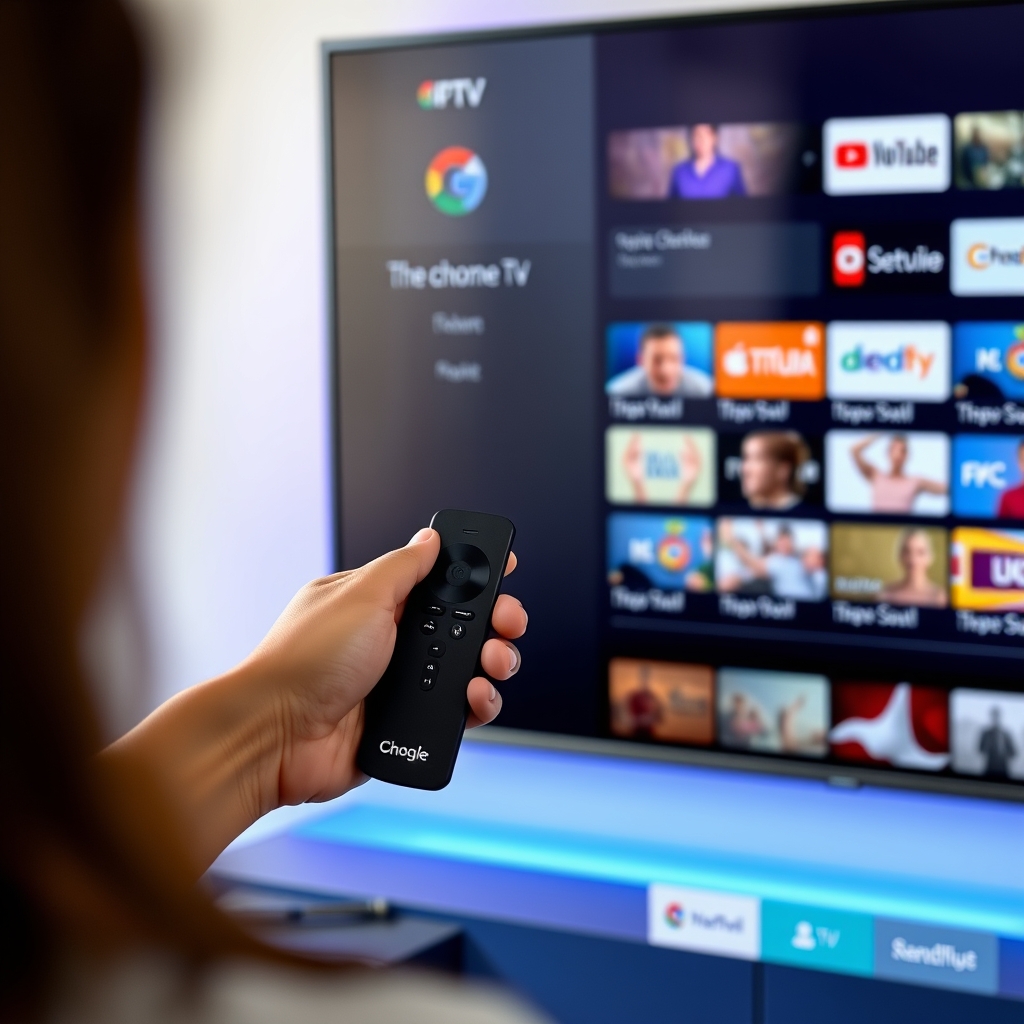
Not all IPTV apps are created equal. Here are the top performers for Chromecast with Google TV:
TiviMate
TiviMate is a premium IPTV player known for its intuitive interface, customizable channel groups, and EPG (Electronic Program Guide) support. It’s perfect for live TV and works seamlessly with Chromecast.
IPTV Smarters Pro
This app is user-friendly and supports multiple playlists, parental controls, and catch-up TV. It’s ideal for beginners and advanced users alike.
Kodi
Kodi is a versatile media center that can handle IPTV via add-ons like PVR IPTV Simple Client. It’s more complex but offers extensive customization.
For the best experience, pair any of these apps with a reliable IPTV service. Start with our free IPTV trial to see which app suits you.
Pro Tips for Smooth Streaming
To maximize your IPTV experience on Chromecast with Google TV, follow these tips:
- Stable internet: Use a wired Ethernet connection or a strong 5GHz Wi-Fi signal. Minimum 25 Mbps for 4K streaming.
- Update firmware: Keep your Chromecast and IPTV app updated for bug fixes and performance improvements.
- Use a VPN: A VPN can bypass geo-restrictions and protect your privacy. Choose one with fast servers.
- Optimize settings: In your IPTV app, adjust buffer size to 3-5 seconds and disable hardware acceleration if you face issues.
Common Issues and Fixes
Even with the best setup, you might encounter problems. Here are quick solutions:
- Buffering: Check internet speed, restart router, or reduce stream quality in the app.
- App crashes: Clear cache in Settings > Apps > [App Name] > Clear Cache. Reinstall if needed.
- No audio: Ensure your TV audio output is set to PCM or Auto. Restart Chromecast.
- Playlist not loading: Verify the M3U URL is correct. Contact your IPTV provider for support.
If issues persist, explore our FAQ for more troubleshooting tips.
Try IPTV Free with a 48-Hour Trial
Ready to experience IPTV on Chromecast with Google TV? We offer a free 48-hour IPTV trial with access to over 9,000 live channels, including sports, news, entertainment, and international content. No credit card required—just sign up and start streaming.
This trial is perfect for testing compatibility with your Chromecast device. Simply follow the setup guide above, load your playlist, and enjoy premium TV at no cost. Claim your free trial here and see why thousands of users trust our service.
Conclusion: Elevate Your TV Experience
Watching IPTV on Chromecast with Google TV is a game-changer for cord-cutters and streaming enthusiasts. With the right app, a stable internet connection, and a reliable IPTV provider, you can access a world of content at your fingertips. We hope this guide has equipped you with the knowledge to set up and optimize your system.
Don’t forget to take advantage of our free IPTV trial—it’s the easiest way to test the waters without commitment. For more tips, check out our more guides on IPTV streaming. Happy watching!
For additional reading on IPTV technology, visit Wikipedia’s IPTV page (external source).