Table of Contents
- What is TiviMate and Why Use It for IPTV?
- Prerequisites Before Configuration
- Installing TiviMate on Your Device
- Basic TiviMate Configuration Steps
- Adding Your IPTV Playlist to TiviMate
- Advanced TiviMate Settings for Optimal Performance
- Troubleshooting Common TiviMate Issues
- Conclusion: Enjoy Seamless IPTV Streaming
What is TiviMate and Why Use It for IPTV?
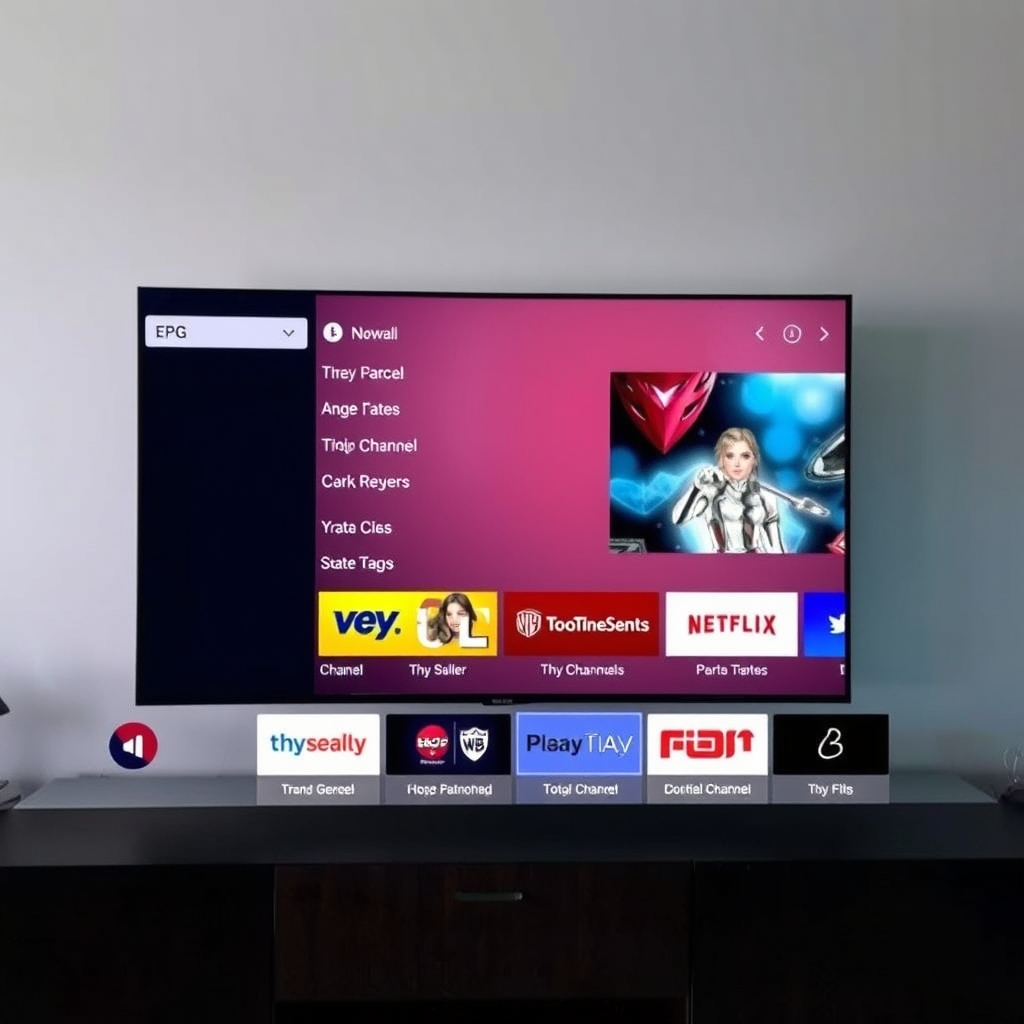
TiviMate is a premium IPTV player application designed specifically for Android devices, including smartphones, tablets, Android TV boxes, and Fire TV sticks. Unlike generic media players, TiviMate configuration for IPTV services is optimized for live TV streaming, offering features like electronic program guides (EPG), multiple playlist support, recording capabilities, and a user-friendly interface that mimics traditional cable/satellite TV experiences.
The primary advantage of using TiviMate with your IPTV service is the enhanced viewing experience. While many IPTV providers offer their own basic apps, TiviMate provides superior customization, faster channel switching, better EPG integration, and more reliable playback. When you pair TiviMate with a quality IPTV service like our free trial here, you create a streaming setup that rivals traditional television services at a fraction of the cost.
Prerequisites Before Configuration
Before beginning your TiviMate configuration for IPTV services, ensure you have the following components ready:
- Active IPTV Subscription: You need a working IPTV service with valid credentials. We recommend starting with our 48-hour free IPTV trial that includes access to 9,000+ live channels to test your setup.
- Compatible Device: TiviMate works on Android 5.0+ devices, including NVIDIA Shield, Fire TV Stick, Android TV boxes, and smartphones/tablets.
- Playlist Information: Your IPTV provider should give you an M3U URL or Xtream Codes API details (username, password, server URL).
- EPG Source: Electronic Program Guide URL for TV schedule information (usually provided by your IPTV service).
- Stable Internet Connection: Minimum 15 Mbps for HD streaming, 25+ Mbps for 4K content.
According to Android TV's official documentation, ensuring your device meets minimum requirements is crucial for optimal streaming performance. Take a moment to verify your device specifications before proceeding with TiviMate configuration.
Installing TiviMate on Your Device
TiviMate isn't available on the Google Play Store for most devices due to IPTV-related restrictions. Follow these installation methods based on your device type:
For Android TV/Google TV Devices:
- Enable "Unknown Sources" in your device's Security settings
- Download the Downloader app from the Play Store
- Use Downloader to navigate to the official TiviMate website or trusted APK source
- Download and install the latest TiviMate APK (currently version 4.7+)
For Amazon Fire TV Devices:
- Go to Settings > My Fire TV > Developer Options
- Turn ON "Apps from Unknown Sources"
- Install the Downloader app from Amazon Appstore
- Enter the TiviMate APK URL in Downloader and install
For Android Phones/Tablets:
- Enable installation from unknown sources in Security settings
- Download the TiviMate APK from a trusted source
- Install and launch the application
Once installed, open TiviMate to begin the configuration process. The initial setup wizard will guide you through basic preferences, but we'll cover the complete TiviMate configuration for IPTV services in the following sections.
Basic TiviMate Configuration Steps
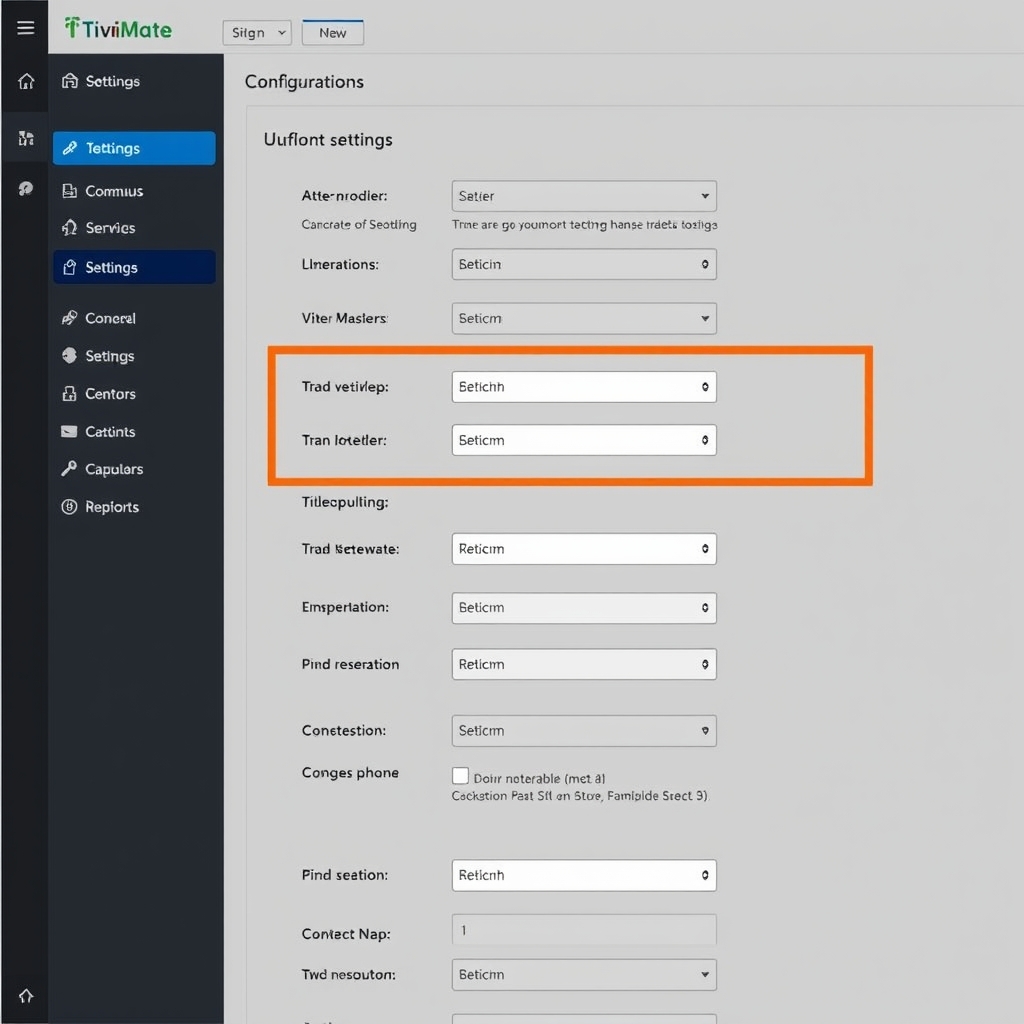
After launching TiviMate for the first time, follow these initial configuration steps:
- Grant Necessary Permissions: Allow TiviMate to access storage (for recordings) and network connectivity.
- Choose Your Theme: Select between light and dark mode based on preference.
- Set Up Parental Controls: Optional but recommended for households with children.
- Configure Remote Control Settings: Customize button mappings for your specific remote.
- Adjust Display Settings: Set appropriate resolution and refresh rate for your TV/monitor.
The basic TiviMate configuration establishes the foundation for your viewing experience. Take time to explore these settings before adding your IPTV service. Proper initial setup reduces issues later and ensures smoother integration when you add your IPTV trial playlist.
Adding Your IPTV Playlist to TiviMate
This is the core of TiviMate configuration for IPTV services. You'll add your playlist using either the M3U URL method or Xtream Codes API:
Method 1: M3U URL Configuration
- From TiviMate's main screen, go to Settings > Playlists
- Select "Add Playlist" and choose "Enter URL"
- Paste your M3U playlist URL (provided by your IPTV service)
- Name your playlist (e.g., "Instant IPTV Trial")
- Wait for TiviMate to fetch and parse the playlist
Method 2: Xtream Codes API Configuration
- In Playlists section, select "Add Playlist" then "Xtream Codes API"
- Enter the following details provided by your IPTV service:
- Server URL (e.g., http://yourprovider.com)
- Username (your subscription username)
- Password (your subscription password)
- Click "Next" and wait for verification
EPG (Electronic Program Guide) Setup:
- After adding playlist, select "Add EPG Source"
- Enter your EPG URL (provided by IPTV service)
- Assign the EPG to your playlist
- Wait for EPG data to download (may take several minutes)
For users testing our service, the FAQ page contains specific details about playlist URLs and EPG sources that work seamlessly with TiviMate configuration.
Advanced TiviMate Settings for Optimal Performance
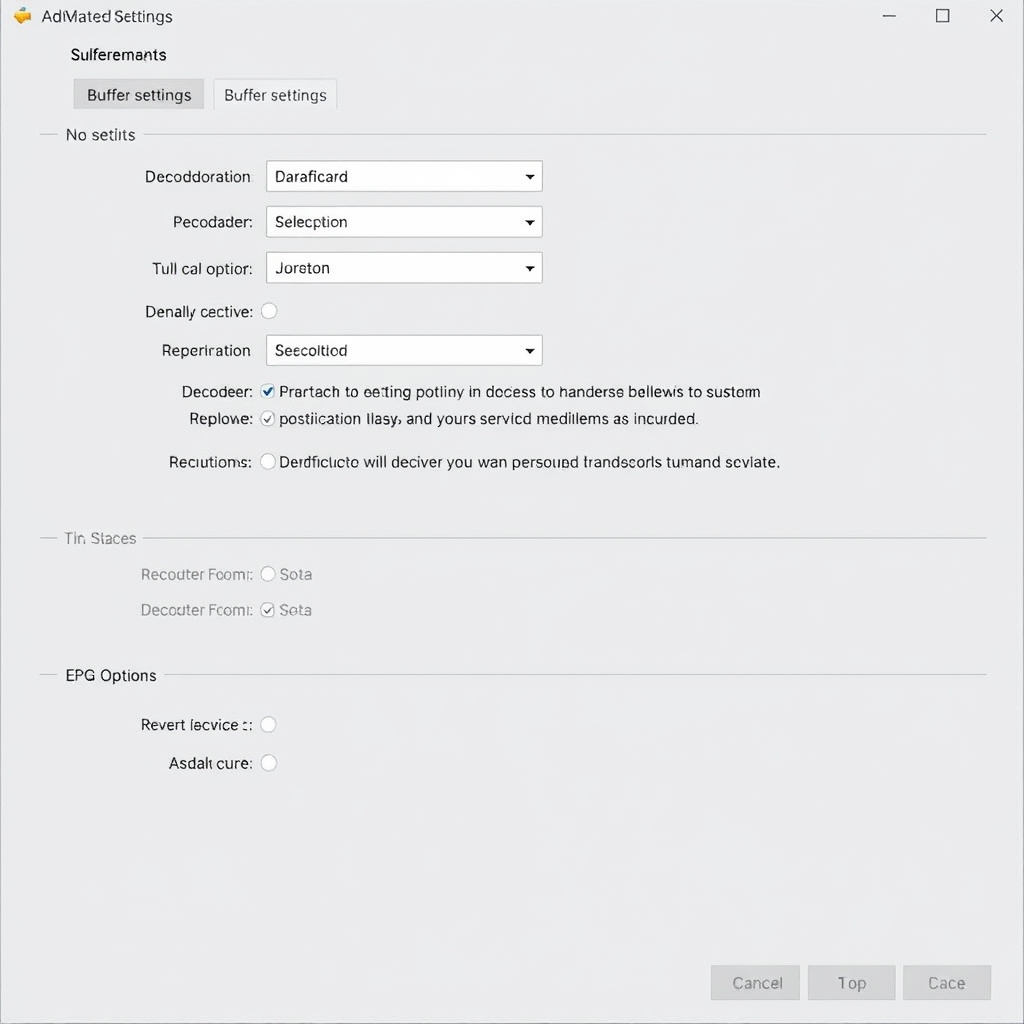
Once your basic TiviMate configuration for IPTV services is complete, optimize performance with these advanced settings:
Playback Settings:
- Buffer Size: Increase to 10-15 seconds for unstable connections
- Decoder Type: Use hardware acceleration if supported by your device
- A/V Sync: Adjust if experiencing audio delay
- Channel Switching Delay: Set to minimum for faster switching
EPG Configuration:
- Update Interval: Set to 12-24 hours for fresh program data
- Past Days to Keep: 1-2 days is usually sufficient
- EPG Source Priority: Set your primary source first
Recording Setup:
- Storage Location: Designate external storage if available
- Recording Format: TS format is most compatible
- Schedule Recordings: Use EPG data to set future recordings
Groups and Favorites:
- Create custom groups for different content types
- Mark frequently watched channels as favorites
- Hide unused channels to declutter your guide
Troubleshooting Common TiviMate Issues
Even with perfect TiviMate configuration, you might encounter issues. Here are solutions to common problems:
Channels Not Loading:
- Verify your playlist URL is correct and active
- Check internet connection stability
- Ensure your IPTV subscription hasn't expired
- Try switching between HLS and MPEG-TS output formats
EPG Not Showing:
- Confirm EPG URL is correctly entered
- Manually update EPG in Settings > EPG > Update EPG
- Check if EPG source is currently available
- Try alternative EPG sources if available
Playback Stuttering/Buffering:
- Increase buffer size in playback settings
- Switch decoder type (software vs hardware)
- Reduce video quality if bandwidth is limited
- Restart your router and streaming device
Authentication Errors:
- Double-check username/password for Xtream Codes
- Ensure your subscription is active
- Contact your IPTV provider if issues persist
- Test with our free IPTV trial to isolate the problem
For persistent issues, visit our more guides section for detailed troubleshooting articles specific to TiviMate configuration problems.
Conclusion: Enjoy Seamless IPTV Streaming
Proper TiviMate configuration for IPTV services transforms your viewing experience from basic streaming to a premium television service. By following this comprehensive guide, you've learned to install TiviMate, configure playlists, optimize settings, and troubleshoot common issues. The combination of TiviMate's powerful features with a reliable IPTV service creates an entertainment solution that rivals traditional cable at a fraction of the cost.
Remember that the quality of your TiviMate experience depends heavily on your IPTV service provider. For the best results, start with our 48-hour free trial featuring 9,000+ live channels, premium content, and reliable servers optimized for TiviMate. This allows you to test your configuration with a high-quality service before committing to a subscription.
With your TiviMate configuration complete, you can now enjoy organized channel lists, comprehensive program guides, recording capabilities, and a polished interface that makes IPTV streaming feel like traditional TV—only better, more flexible, and more affordable. Happy streaming!