Table of Contents
- What Are Audio Sync Issues on IPTV?
- Quick Fixes for Solving Audio Sync Issues on IPTV
- Device-Specific Solutions
- Advanced Troubleshooting Methods
- Prevention Tips to Avoid Future Issues
- Conclusion: Enjoy Flawless IPTV Audio
What Are Audio Sync Issues on IPTV?
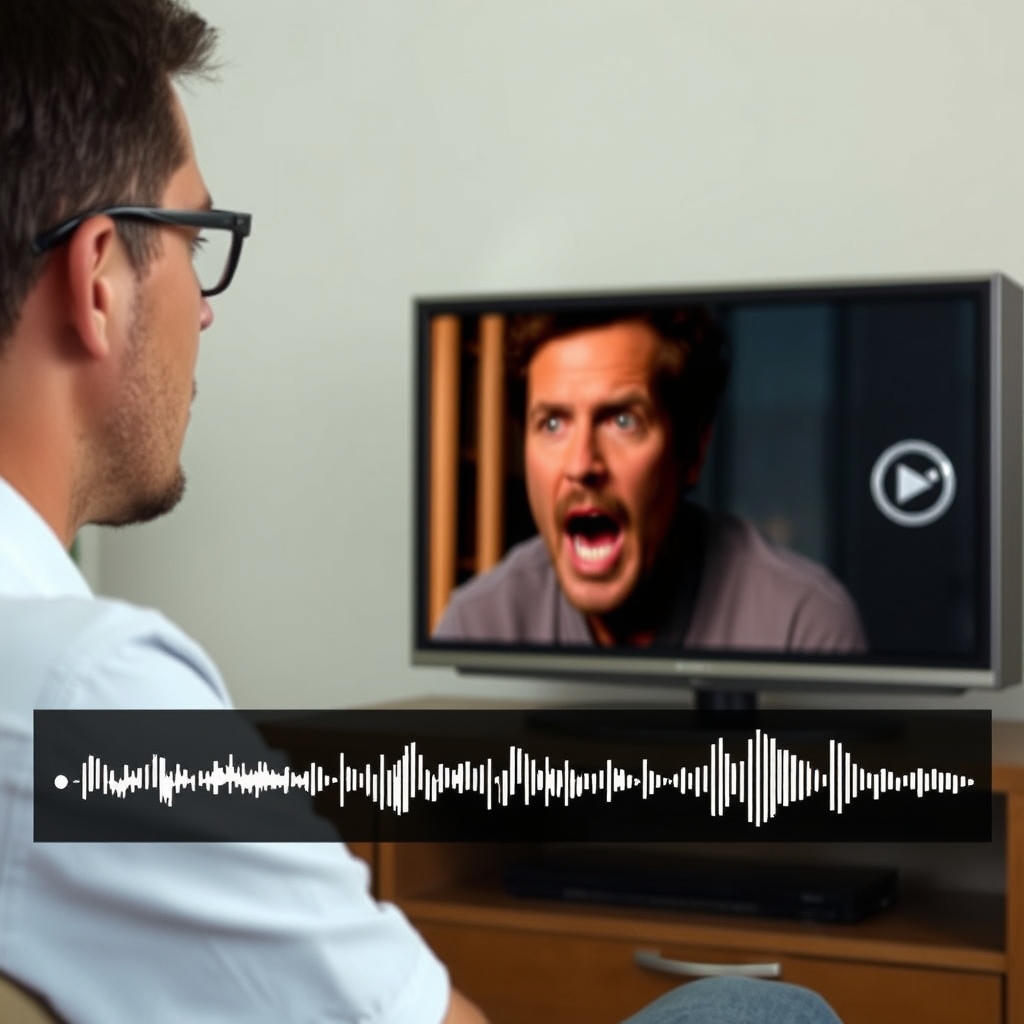
Solving audio sync issues on IPTV is a common challenge for many streaming enthusiasts. Audio sync problems, often called lip sync errors or audio lag, occur when the audio track doesn't match the video playback. You might see mouths moving before you hear the words, or hear dialogue before the lips move on screen. This frustrating experience can ruin even the best content from our 9,000+ channel lineup.
These synchronization problems typically stem from processing delays in your streaming device, network buffering, or compatibility issues between your IPTV service and playback application. According to streaming technology experts at Digital Trends, modern streaming systems have multiple points where audio-video timing can drift apart, requiring specific correction strategies.
7 Quick Fixes for Solving Audio Sync Issues on IPTV
Before diving into complex solutions, try these quick fixes that resolve most common audio sync problems. Start with the simplest methods and work your way down the list.
1. Restart Your Streaming Device and Router
The classic IT solution works surprisingly well for solving audio sync issues on IPTV. Power cycle your streaming device (Fire Stick, Android Box, Smart TV) and your internet router. This clears temporary caches and resets network connections that might be causing timing issues. Wait 30 seconds before restarting each device.
2. Check Your Internet Connection Speed
Audio sync problems often indicate network buffering. Run a speed test to ensure you have at least 15-25 Mbps for stable HD streaming. If your connection is slow, try pausing the stream for 30 seconds to allow buffering, or reduce the video quality in your IPTV app settings temporarily.
3. Switch Audio Output Settings
Navigate to your device's audio settings and try different output formats. Sometimes switching from Dolby Digital to PCM stereo (or vice versa) immediately solves audio lag. If you're using external speakers or a soundbar, ensure they're set to the correct delay compensation if available.
4. Update Your IPTV App and Device Software
Outdated software is a leading cause of audio-video synchronization problems. Check for updates to your IPTV application and your device's operating system. Developers frequently release patches that address timing issues and improve codec compatibility.
Device-Specific Solutions for Audio Sync
Different streaming devices require tailored approaches for solving audio sync issues on IPTV. Here's how to address problems on popular platforms.
Amazon Fire Stick & Fire TV
Go to Settings > Display & Sounds > Audio. Try disabling "Dolby Digital Plus" and switch to "Stereo." If using an AV receiver, enable "Audio Video Sync" in the equipment control settings. Also check the "Audio Offset" adjustment in many IPTV apps when playing content.
Android TV & Boxes
Access Settings > Device Preferences > Sound. Adjust the "AV Sync" or "Audio Delay" setting if available. For advanced users, enable Developer Options and experiment with "Disable HW overlays" which can affect rendering timing. Many Android IPTV apps have built-in audio delay adjustment in their playback settings.
Smart TVs (Samsung, LG, Sony)
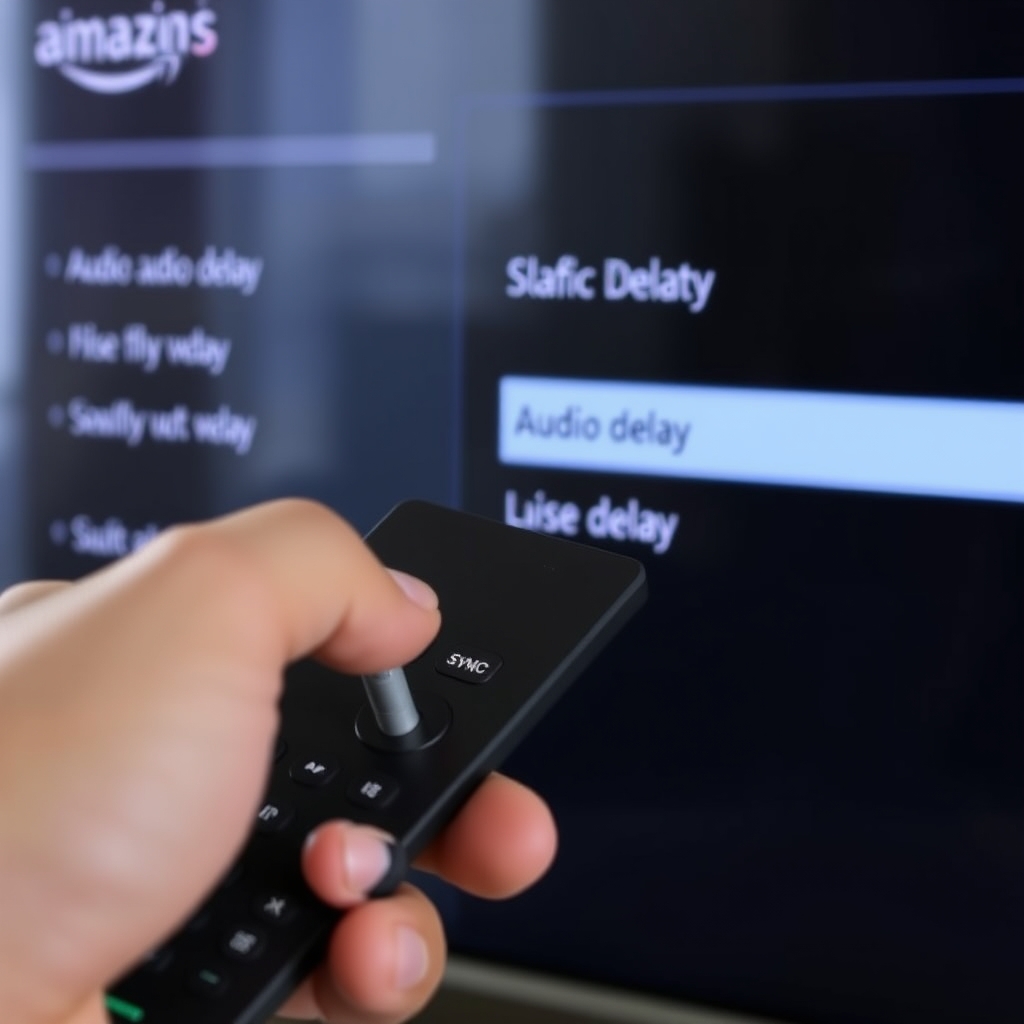
Smart TV audio processing varies significantly. Look for "Lip Sync," "AV Sync," or "Audio Delay" in your TV's sound settings. Some models have an auto-calibration feature. Also try changing the TV's sound mode from "Movie" to "Standard" or disabling any "Audio Enhancement" features that might add processing delay.
Advanced Troubleshooting Methods
If basic fixes don't work, these advanced techniques for solving audio sync issues on IPTV often resolve persistent problems.
5. Adjust Audio Delay in Your IPTV Player
Most quality IPTV players include audio delay adjustment. While playing content, access the player's settings (usually through an on-screen menu or settings icon) and look for "Audio Sync," "AV Delay," or similar. Adjust in small increments (50-100 milliseconds) until synchronization is perfect. This setting often saves per-channel or globally.
6. Change Video Player or Codec Settings
Your IPTV application may offer different video players (like VLC, ExoPlayer, or built-in). Try switching players in the app settings. Additionally, experiment with hardware vs software decoding. Hardware decoding is usually faster but can cause sync issues on some devices, while software decoding may synchronize better at the cost of some performance.
7. Use a Dedicated Media Player App
For extreme cases, use your IPTV service with a dedicated player like VLC or Kodi. These applications offer sophisticated audio synchronization controls. In VLC, go to Tools > Track Synchronization while playing to fine-tune audio delay. These players also handle various codecs more consistently than some built-in IPTV app players.
Remember, our service works flawlessly with all major players, and you can test synchronization during your free trial here with different configurations.
Prevention Tips to Avoid Future Audio Sync Issues
Prevention is easier than correction. Implement these practices to minimize audio sync problems with your IPTV service.
- Use Wired Ethernet When Possible: A direct connection provides more consistent timing than Wi-Fi, reducing buffering variations that cause sync drift.
- Close Background Applications: Other apps consuming device resources can interfere with precise audio-video timing.
- Regular Maintenance: Clear cache on your IPTV app weekly and restart your streaming device periodically to prevent gradual sync drift.
- Match Refresh Rates: Configure your display to match content framerates (24Hz for movies, 60Hz for live TV) when possible to reduce conversion delays.
Conclusion: Enjoy Flawless IPTV Audio
Solving audio sync issues on IPTV is typically straightforward with the right approach. Start with basic troubleshooting like restarting devices and checking connections, then move to device-specific settings, and finally utilize advanced player adjustments if needed. Most users resolve their lip sync problems within minutes using these proven methods.
The quality of your IPTV service also plays a crucial role in maintaining perfect audio-video synchronization. With properly optimized streams and reliable delivery, sync issues become rare occurrences rather than constant frustrations. Experience the difference with our optimized service during a free 48-hour trial featuring 9,000+ perfectly synchronized channels.
If you continue experiencing persistent audio sync problems after trying these solutions, check our FAQ section for device-specific guidance or explore more technical troubleshooting guides on our blog. With the right setup and these troubleshooting techniques, you'll soon enjoy perfectly synchronized entertainment that matches the quality of traditional broadcast television.