Table of Contents
- Why Use IPTV on LG WebOS?
- What You Need Before Starting
- Method 1: Using the Smart IPTV App (Recommended)
- Method 2: Using IPTV Smarters Pro
- Method 3: Manual Playlist Loading via USB
- Common Troubleshooting Tips
- Optimizing Your IPTV Experience
- Start Streaming Today
Why Use IPTV on LG WebOS for Your Entertainment?
Setting up IPTV on LG WebOS transforms your television into a global entertainment hub. LG's WebOS platform, known for its intuitive interface and smooth performance, provides an excellent foundation for IPTV services. With the right setup, you can access over 9,000 live channels, video-on-demand content, and premium networks directly on your LG Smart TV without additional hardware. The process of setting up IPTV on LG WebOS is straightforward once you understand the available methods and requirements.
Unlike traditional cable or satellite services, IPTV delivers content via your internet connection, offering greater flexibility, channel variety, and often significant cost savings. LG WebOS TVs, particularly models from 2014 onward, support various IPTV applications that make installation accessible to users of all technical levels. Whether you want international sports, news, movies, or specialty programming, setting up IPTV on LG WebOS unlocks a world of content.
What You Need Before Setting Up IPTV on LG WebOS
Before beginning the process of setting up IPTV on LG WebOS, ensure you have these essential components ready:
- An LG WebOS TV (2014 model or newer): Check your TV's WebOS version in Settings > General > About This TV
- Stable Internet Connection: Minimum 15 Mbps for HD streaming, 25+ Mbps for 4K content
- Active IPTV Subscription: You'll need service credentials (username, password, server URL, or M3U playlist)
- LG TV Remote: For navigation and app installation
- Optional: USB Flash Drive: For manual installation methods
Most importantly, you'll need a reliable IPTV service provider. For those looking to test before committing, we offer a comprehensive free 48-hour IPTV trial here with full access to our 9,000+ channel lineup. This allows you to verify compatibility and performance before setting up IPTV on LG WebOS permanently.
Method 1: Using the Smart IPTV App (Recommended)
The Smart IPTV application is the most popular method for setting up IPTV on LG WebOS due to its simplicity and reliability. This paid application (one-time fee) serves as a player for your IPTV service's content.
Step-by-Step Installation Guide
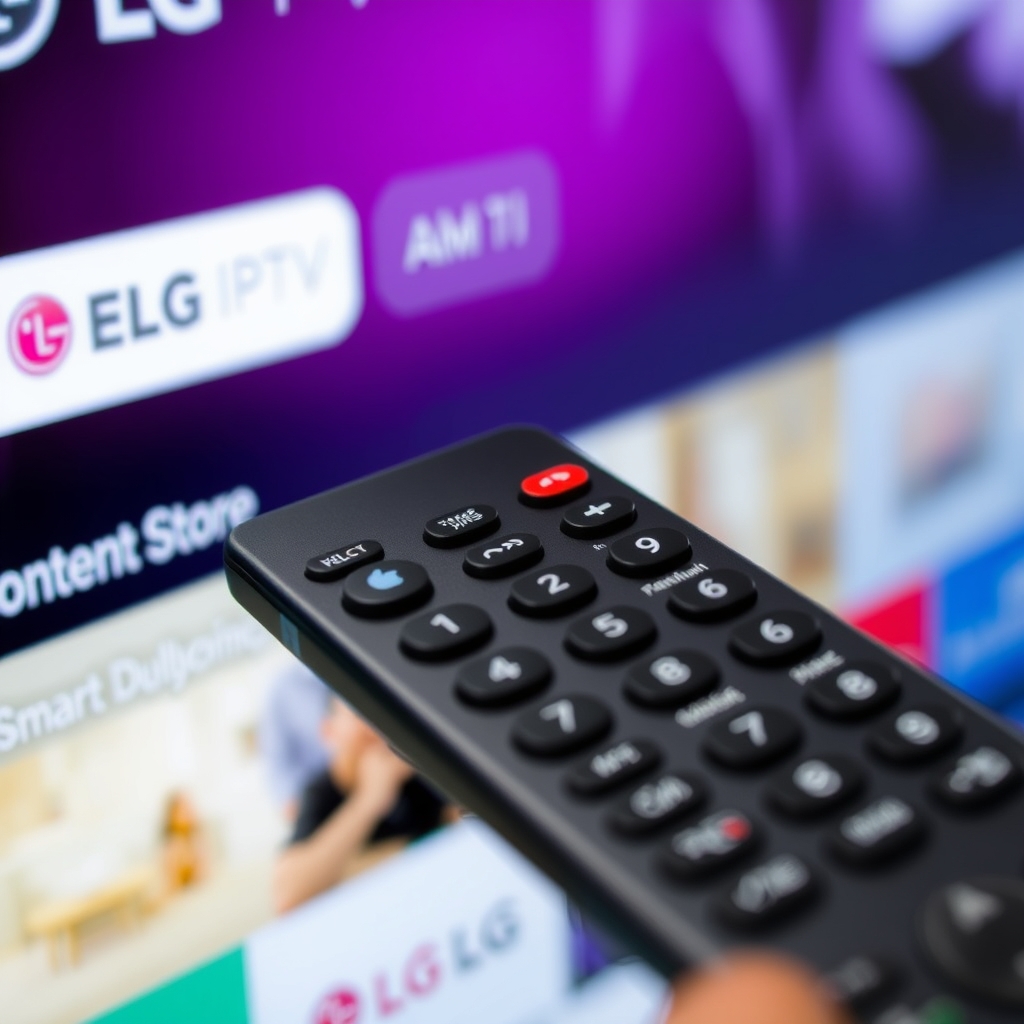
1. Access LG Content Store: Press the Home button on your remote and navigate to the LG Content Store icon.
2. Search for Smart IPTV: Use the search function and type "Smart IPTV" (not to be confused with "SmartIPTV" which is a different app).
3. Purchase and Install: The app costs approximately $7.50 as a one-time payment. Complete the purchase and install it on your TV.
4. Launch and Note MAC Address: Open Smart IPTV and note the MAC address displayed on screen (format: XX:XX:XX:XX:XX:XX).
5. Activate Your Playlist: Visit the Smart IPTV activation website on another device, enter your TV's MAC address, and upload your M3U playlist file or enter your playlist URL provided by your IPTV service.
6. Restart and Enjoy: Restart the Smart IPTV app on your LG TV. Your channels should now be loaded and ready to stream.
This method for setting up IPTV on LG WebOS is particularly effective because it bypasses some of the limitations of the native LG app store, which may not carry all IPTV applications. According to LG's official developer documentation, WebOS supports third-party applications through their certified app program, ensuring compatibility and security.
Method 2: Using IPTV Smarters Pro
IPTV Smarters Pro is another excellent option for setting up IPTV on LG WebOS, especially if you prefer a more feature-rich interface with better organization capabilities.
Installation and Configuration Process
1. Enable Developer Mode: This method requires enabling developer mode on your LG WebOS TV. Go to Settings > General > About This TV > TV Information and click the "Set" or "Start" button 7 times on your remote (varies by model).
2. Install IPTV Smarters: In the Home dashboard, you'll now see a "Developer" icon. Open it and select "Install IPTV Smarters Pro" or manually install via USB if available.
3. Configure Your Service: Launch IPTV Smarters Pro and select "Add New User." Choose "Login with Xtream Codes API" (most common) or "Load Your Playlist or File/URL."
4. Enter Credentials: Input the details provided by your IPTV service: URL, username, and password. For our service trial users, these credentials are automatically provided when you start your free trial here.
5. Customize Your Experience: IPTV Smarters allows extensive customization including favorite channels, parental controls, and EPG (Electronic Program Guide) configuration.
While this method for setting up IPTV on LG WebOS requires a few extra steps, many users prefer IPTV Smarters for its modern interface, multi-screen support, and better VOD (Video on Demand) organization compared to simpler players.
Method 3: Manual Playlist Loading via USB
For users who prefer not to install additional applications, setting up IPTV on LG WebOS can be accomplished through manual playlist loading using the native media player.
USB-Based Setup Procedure
1. Prepare Your USB Drive: Format a USB flash drive to FAT32 or exFAT format for compatibility with LG WebOS.
2. Create Playlist File: On your computer, create a text file named "playlist.m3u" (or similar) containing your IPTV service's playlist URL or content. The basic format should be: #EXTM3U followed by channel entries.
3. Transfer to USB: Save the file to the root directory of your USB drive (not in any folder).
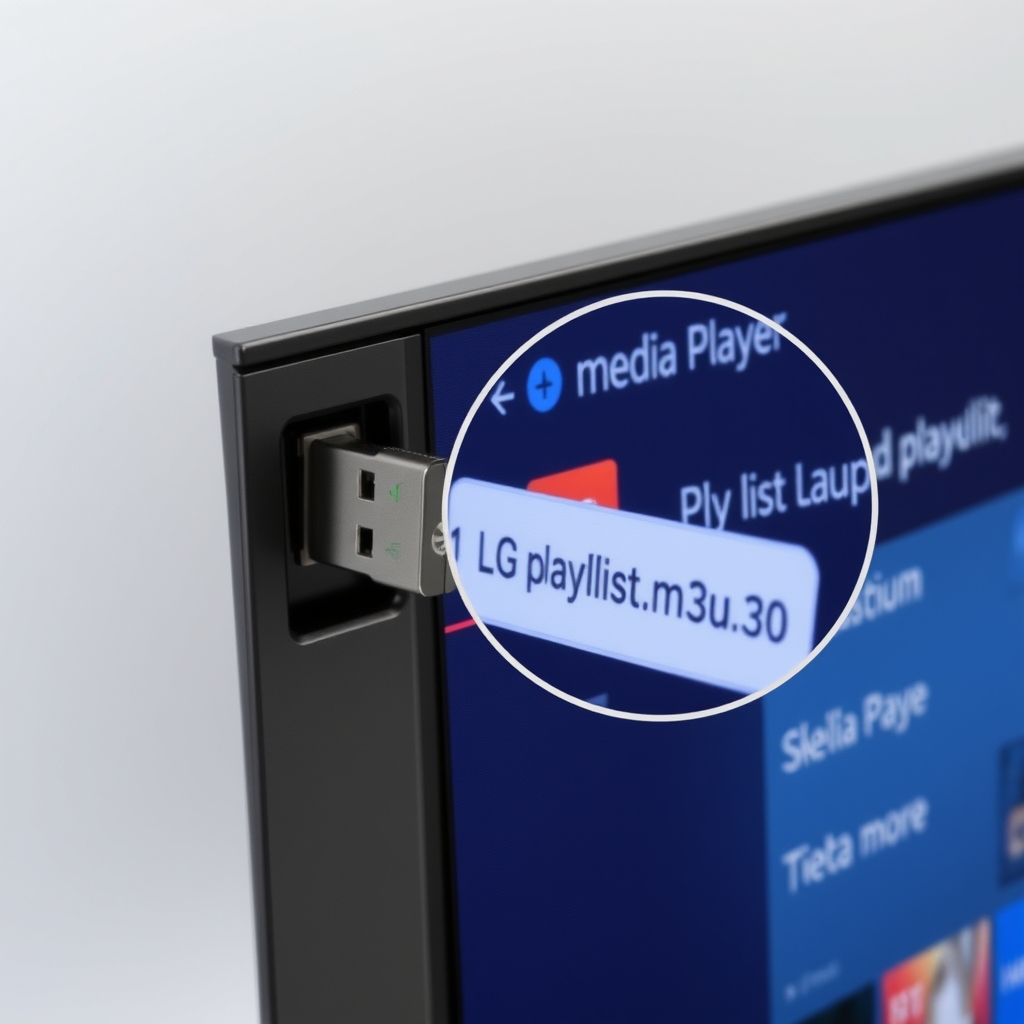
4. Connect to LG TV: Insert the USB drive into your LG WebOS TV's USB port.
5. Access via Media Player: Open the LG Media Player app from your home screen, navigate to your USB drive, and select the playlist file. The TV should recognize and play the channels directly.
While this method for setting up IPTV on LG WebOS is more technical and offers fewer features than dedicated apps, it works without additional installations and can be useful for temporary setups or testing different services during trial periods.
Common Issues When Setting Up IPTV on LG WebOS
Even with careful setup, you might encounter some challenges. Here are solutions to common problems:
- App Not Available in LG Content Store: Some regions restrict certain apps. Try changing your TV's country setting temporarily or use alternative methods like IPTV Smarters.
- Buffering or Freezing: This is usually internet-related. Check your connection speed, use wired Ethernet instead of WiFi if possible, or adjust streaming quality in your IPTV app settings.
- MAC Address Not Recognized: Ensure you're entering the correct MAC address from your TV (not your router). Some TVs have separate MAC addresses for wired and wireless connections.
- Audio/Video Out of Sync: Try changing the audio track or adjusting synchronization settings in your IPTV player. Restarting the app often resolves this.
- EPG (TV Guide) Not Loading: Verify your EPG source URL is correct in your IPTV app settings. Some services require separate EPG configuration.
For persistent issues when setting up IPTV on LG WebOS, consult our comprehensive IPTV FAQ section which addresses dozens of common technical questions and solutions.
Optimizing Your IPTV Experience on LG WebOS
Once you've successfully completed setting up IPTV on LG WebOS, these optimizations will enhance your viewing experience:
Network Configuration Tips
• Use Wired Connection: For the most stable streaming, connect your LG TV directly to your router via Ethernet cable rather than using WiFi.
• Quality of Service (QoS): Configure QoS settings on your router to prioritize streaming traffic to your TV, reducing buffering during peak usage times.
• Regular Updates: Keep your LG WebOS updated (Settings > General > About This TV > Check for Updates) and update your IPTV applications when new versions are available.
App-Specific Enhancements
• Organize Favorites: Most IPTV apps allow creating favorite channel lists. Spend time organizing channels by category for quicker access.
• Adjust Buffer Settings: In apps like Smart IPTV, increasing buffer size can improve playback stability on slower connections.
• External Player Option: Some users report better performance using external players (if supported by your IPTV app). Experiment to find what works best for your setup.
According to streaming technology experts, proper network configuration is often more important than raw internet speed when it comes to IPTV performance. A consistent 15 Mbps connection typically outperforms an inconsistent 50 Mbps connection for streaming purposes.
Start Streaming Thousands of Channels on Your LG TV Today
Setting up IPTV on LG WebOS opens up a world of entertainment possibilities that far exceed traditional television services. With multiple installation methods available—from the user-friendly Smart IPTV app to the feature-rich IPTV Smarters Pro—there's an approach suitable for every technical comfort level. The key to success lies in having a reliable IPTV service provider and following the step-by-step instructions specific to your LG WebOS version.
The process of setting up IPTV on LG WebOS has become increasingly streamlined over the years, with LG's platform offering good support for third-party streaming applications. Whether you're interested in international content, premium sports packages, or extensive movie libraries, a properly configured IPTV service transforms your LG Smart TV into the ultimate entertainment center.
Ready to experience the benefits firsthand? We invite you to start your free 48-hour IPTV trial here and test our service with 9,000+ live channels on your LG WebOS TV. Our setup support team can guide you through the process, ensuring you're streaming your favorite content in minimal time. For more technical guides and tips, explore our complete library of IPTV setup articles covering various devices and platforms.