IPTV Smarters Pro Setup Tutorial: Your Complete 2024 Guide
IPTV Smarters Pro has become one of the most popular IPTV players worldwide, offering a sleek interface, reliable performance, and compatibility with virtually all IPTV services. This comprehensive IPTV Smarters Pro setup tutorial will guide you through every step of installation, configuration, and optimization on Android, iOS, Amazon Firestick, and Windows devices. Whether you're setting up your first IPTV service or switching to a new provider, this guide ensures you'll be streaming thousands of live channels in minutes. Ready to begin? You can start your free 48-hour trial here with access to 9,000+ channels to test with Smarters Pro immediately.
Table of Contents
- What Is IPTV Smarters Pro?
- Before You Begin: What You Need
- Android Installation & Setup
- Amazon Firestick Installation
- iOS & Apple TV Setup
- Windows PC & Mac Setup
- Configuration: Adding Your IPTV Service
- Using IPTV Smarters Pro Features
- Troubleshooting Common Issues
- Optimization Tips for Better Streaming
- Conclusion: Start Streaming Today
What Is IPTV Smarters Pro?
IPTV Smarters Pro is a premium IPTV player application that allows users to stream live TV, movies, series, and catch-up content from their IPTV service provider. Unlike proprietary apps from specific providers, Smarters Pro works with any IPTV service that provides Xtream Codes API or M3U playlist credentials, making it incredibly versatile. The application is developed by WHMCS Smarters, a company specializing in IPTV solutions, and has gained popularity for its user-friendly interface and stability across different platforms.
The app supports multiple viewing formats including Live TV, VOD (Video on Demand), Series, and Catch-Up TV. One of its standout features is the ability to create multiple user profiles within a single subscription, making it ideal for families. According to streaming industry analysis, IPTV Smarters Pro consistently ranks among the top three most downloaded IPTV players globally, particularly on Android platforms.
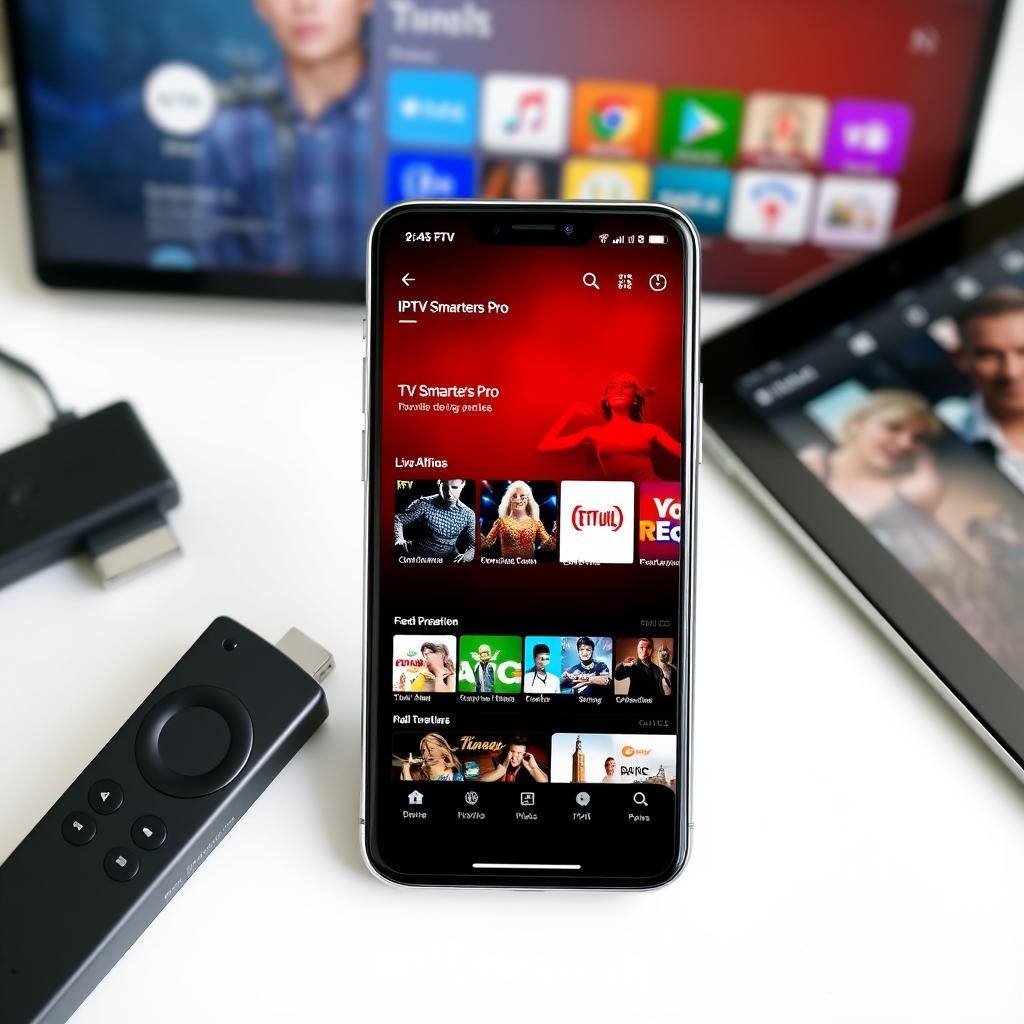
Before You Begin: What You Need
Before starting this IPTV Smarters Pro setup tutorial, ensure you have the following requirements:
- Active IPTV Subscription: You need valid credentials from an IPTV service provider. This typically includes a URL/portal, username, and password. If you don't have one yet, you can get a free 48-hour trial here with instant access.
- Compatible Device: Android phone/tablet (5.0+), Amazon Firestick/Fire TV, iOS device (11.0+), Apple TV, Windows PC, or Mac.
- Stable Internet Connection: Minimum 15 Mbps for HD streaming, 25+ Mbps for 4K content.
- Device Storage: At least 100MB free space for the application.
It's also recommended to have a VPN service if you're in a region with streaming restrictions, though this isn't always necessary depending on your location and provider.
Android Installation & Setup
Android users have the easiest installation process since IPTV Smarters Pro is available on the Google Play Store. Follow these steps for a flawless setup:
- Open the Google Play Store on your Android device
- Search for "IPTV Smarters Pro" in the search bar
- Select the official app by WHMCS Smarters (with the orange/white icon)
- Tap "Install" and wait for the download to complete
- Once installed, open the application
- Accept the terms and conditions when prompted
- The app will ask for permission to access photos/media/files - grant this permission
If you're using an Android TV device (like Nvidia Shield or Android TV box), the process is identical through the Play Store. Some older Android devices might not support the latest version, in which case you can download the APK directly from the official WHMCS Smarters website, though this requires enabling "Unknown Sources" in your security settings.
Android TV Specific Considerations
For Android TV users, navigation differs slightly. You'll use your remote control instead of touchscreen. The interface is optimized for TV viewing with larger icons and simplified navigation. Ensure your remote's directional pad works correctly within the app, and consider pairing a wireless mouse or air remote if you find navigation challenging.
Amazon Firestick Installation
Since IPTV Smarters Pro isn't available on the Amazon Appstore, Firestick users need to sideload the application. Don't worry - this IPTV Smarters Pro setup tutorial makes it simple:
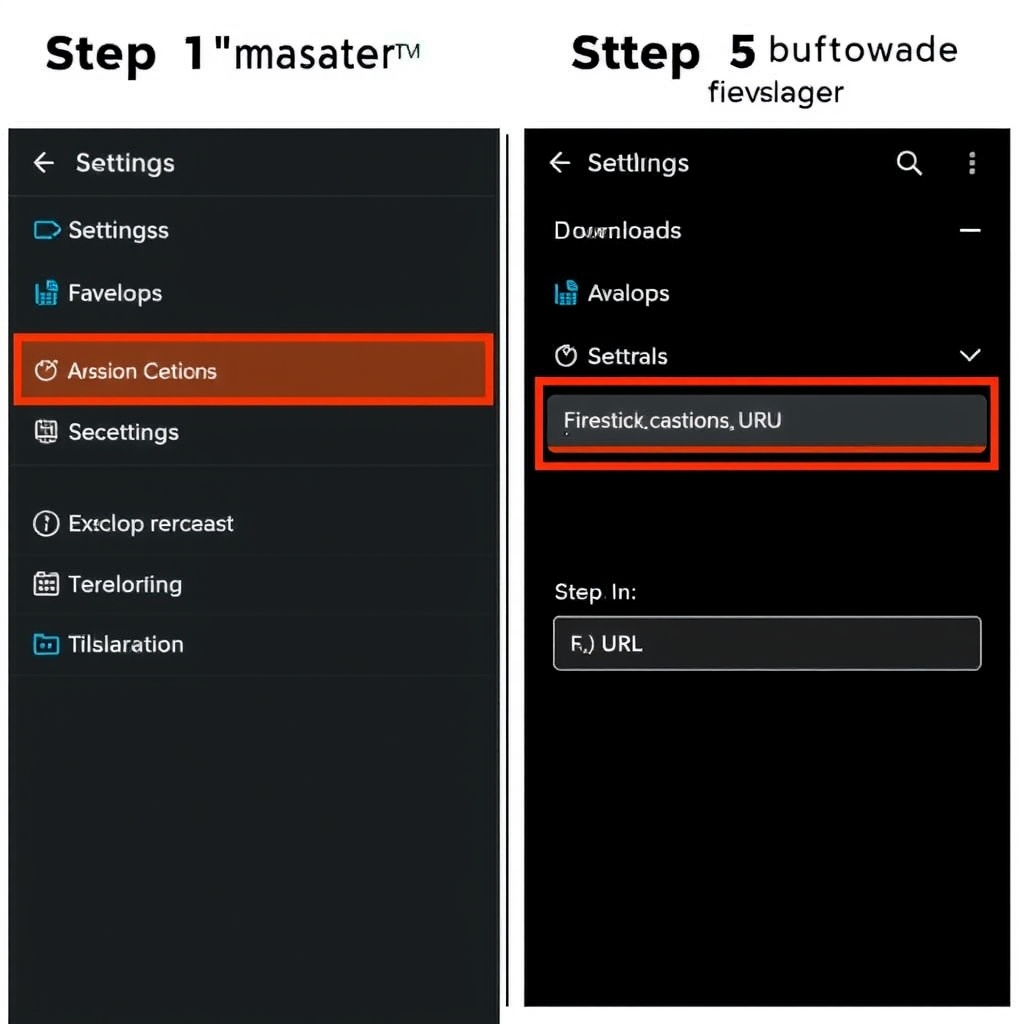
- From the Firestick home screen, go to "Settings" > "My Fire TV" > "Developer Options"
- Turn ON "Apps from Unknown Sources" (if prompted, select "Turn On")
- Return to the home screen and search for "Downloader" in the search bar
- Install the Downloader app (by AFTVnews)
- Open Downloader and enter this URL: https://bit.ly/smarters-pro-latest
- Download the APK file (approximately 45MB)
- When download completes, select "Install"
- After installation, select "Open" or return to your apps list to launch IPTV Smarters Pro
Many users prefer using the Downloader app with short codes instead of full URLs. You can also use alternative methods like Apps2Fire or ADBLink if you're more technically inclined. Once installed, the Firestick version works identically to the Android TV version with full remote compatibility.
iOS & Apple TV Setup
Apple users face the most restrictions due to Apple's App Store policies. IPTV Smarters Pro is available but under a different name and with some limitations:
- Open the App Store on your iPhone, iPad, or Apple TV
- Search for "Smarters Player Lite" (the iOS version of IPTV Smarters Pro)
- Download and install the application
- Open the app and accept any permissions requested
The iOS version functions similarly but may have slight interface differences. For Apple TV 4K and HD models, the process is identical through the tvOS App Store. Note that due to Apple's guidelines, the iOS version might not support certain features available on Android, and you cannot sideload alternative versions.
Alternative iOS Method: TestFlight
Sometimes WHMCS Smarters releases beta versions through Apple's TestFlight program. This requires an invitation but often provides access to newer features before they hit the App Store. Check their official website or social media for TestFlight invitations if you want early access to updates.
Windows PC & Mac Setup
For Windows users, IPTV Smarters Pro is available as a desktop application:
- Visit the official WHMCS Smarters website (whmcssmarters.com)
- Navigate to the Downloads section
- Select the Windows version download
- Run the installer (.exe file) and follow installation prompts
- Launch the application from your Start menu or desktop shortcut
Mac users have two options: use the iOS version if you have an M1/M2/M3 Mac (through App Store), or use an Android emulator like BlueStacks to run the Android version. The Windows application offers the most features, including multi-window viewing and better integration with external players like VLC.
Configuration: Adding Your IPTV Service
This is the most critical part of our IPTV Smarters Pro setup tutorial. After installing the app on any device, you need to configure it with your IPTV service credentials:
- Open IPTV Smarters Pro
- You'll see two login options: "Login with Xtream Codes API" and "Login with Playlist"
- Most providers use Xtream Codes - select this option
- Enter the following details provided by your IPTV service:
- Portal URL: Provided by your service (usually looks like http://example.com:8080)
- Username: Your subscription username
- Password: Your subscription password
- Click "Add User" or "Login"
- The app will validate your credentials and load your subscription
If your provider gives you an M3U URL instead, select "Login with Playlist" and enter the full M3U URL. Some providers offer both options - Xtream Codes is generally preferred as it loads faster and provides better organization.
During configuration, you might encounter these options:
- Device Name: You can customize this to identify your device on the provider's panel
- Parental Control: Set a PIN to restrict adult content
- Hardware Decoder: Enable for better performance on supported devices
If you're testing different services, you can add multiple providers within the app and switch between them easily. This is particularly useful if you want to try our free trial alongside your current service for comparison.
Using IPTV Smarters Pro Features
Once configured, IPTV Smarters Pro offers numerous features to enhance your viewing experience:
Live TV Navigation
The Live TV section organizes channels by categories (Sports, Entertainment, News, etc.). You can:
- Create favorites lists for quick access
- View EPG (Electronic Program Guide) for schedule information
- Use catch-up functionality if your provider supports it
- Adjust aspect ratio and video player settings
VOD (Video on Demand)
The Movies and Series sections contain thousands of on-demand titles. You can:
- Search by title, genre, or release year
- Create watchlists
- Resume playback from where you left off
- Adjust subtitle settings and audio tracks
Multi-Screen & Multi-View
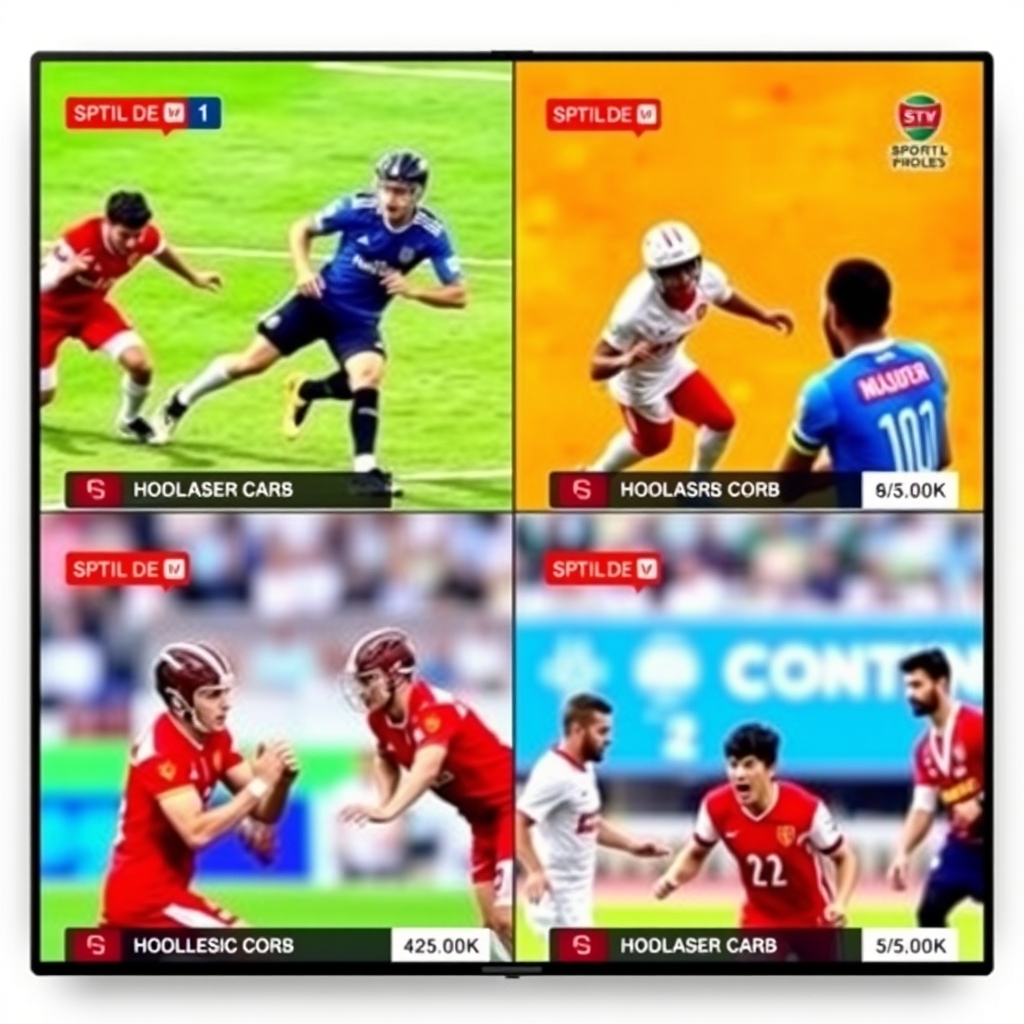
Premium feature: Watch multiple channels simultaneously in split-screen mode (available on capable devices). This is perfect for sports fans who want to monitor several games at once.
Parental Controls & Profiles
Set up individual profiles with restricted content access. This is ideal for families with children. Each profile can have its own favorites and viewing history.
Troubleshooting Common Issues
Even with a perfect setup, you might encounter issues. Here are solutions to common problems:
Buffering or Freezing:
- Check your internet speed (minimum 15 Mbps recommended)
- Switch from WiFi to wired Ethernet if possible
- Change the video player in settings (try HW, HW+, or VLC)
- Reduce video quality temporarily
- Clear app cache from device settings
Login Failed / Invalid Credentials:
- Verify your username/password with your provider
- Ensure you're using the correct portal URL
- Check if your subscription is active and paid
- Try using the M3U method instead of Xtream Codes
No EPG (Channel Guide):
- Wait 5-10 minutes after first login for EPG to load
- Go to Settings > EPG Settings > Update EPG
- Contact your provider if EPG consistently doesn't load
Channels Not Loading:
- Check if your provider is experiencing downtime
- Try switching to a VPN (some ISPs block IPTV traffic)
- Update to the latest version of IPTV Smarters Pro
- Check our FAQ section for more specific solutions
According to streaming technology experts, most IPTV playback issues relate to either internet connectivity or server-side problems with the provider, not the Smarters Pro application itself.
Optimization Tips for Better Streaming
To get the most from your IPTV Smarters Pro setup tutorial experience, implement these optimizations:
- Use a Wired Connection: Ethernet provides more stable streaming than WiFi, especially for 4K content.
- Enable Hardware Decoding: In Settings > Playback, enable hardware decoding for better performance on supported devices.
- Regular Updates: Keep IPTV Smarters Pro updated to the latest version for bug fixes and new features.
- Organize Favorites: Create category-specific favorite lists (Sports, News, Kids) for quicker access.
- External Player Integration: For advanced playback features, set VLC or MX Player as your default video player in settings.
- EPG Customization: Adjust EPG settings to show only your favorite channels, reducing load times.
If you experience consistent quality issues, consider discussing server alternatives with your provider or testing different services. Many users find that our free 48-hour trial helps them determine if issues are device-related or provider-related.
Conclusion: Start Streaming Today
This comprehensive IPTV Smarters Pro setup tutorial has covered everything from basic installation to advanced optimization across all major platforms. IPTV Smarters Pro remains one of the most reliable and feature-rich IPTV players available, and when paired with a quality IPTV service, it delivers an exceptional streaming experience with access to thousands of live channels, movies, and series.
The key to success with any IPTV setup is combining a reliable application like Smarters Pro with a stable, high-quality IPTV service. Proper configuration following this IPTV Smarters Pro setup tutorial ensures you'll encounter minimal issues and maximum enjoyment from your streaming setup.
Ready to put this knowledge into practice? The best way to test your new IPTV Smarters Pro setup is with actual content. You can start your free 48-hour trial here and immediately access over 9,000 live channels, VOD, and premium features to ensure everything works perfectly on your device. Whether you're setting up a single TV or an entire home entertainment system, this IPTV Smarters Pro setup tutorial provides the foundation for endless entertainment possibilities.