Table of Contents
- What is IPTV and Why Use an Android Box?
- Prerequisites Before You Begin
- Step-by-Step Installation Guide
- Configuring Your IPTV Service
- Best IPTV Apps for Android Box
- Troubleshooting Common Issues
- Optimizing Your IPTV Experience
- Conclusion: Start Streaming Today
What is IPTV and Why Use an Android Box?
Learning how to use IPTV on Android Box opens up a world of entertainment possibilities. IPTV (Internet Protocol Television) delivers television content over the internet instead of traditional cable or satellite methods. When combined with an Android TV box—a compact device that runs the Android operating system on your television—you create a powerful streaming hub that can access thousands of live channels, video-on-demand content, and premium networks.
Android boxes like the NVIDIA Shield, Xiaomi Mi Box, or various Android TV devices provide several advantages for IPTV users. They offer a familiar interface, access to the Google Play Store for apps, regular software updates, and compatibility with numerous streaming services. According to Android's official TV platform, the ecosystem continues to grow with optimized applications for larger screens.
Prerequisites Before You Begin
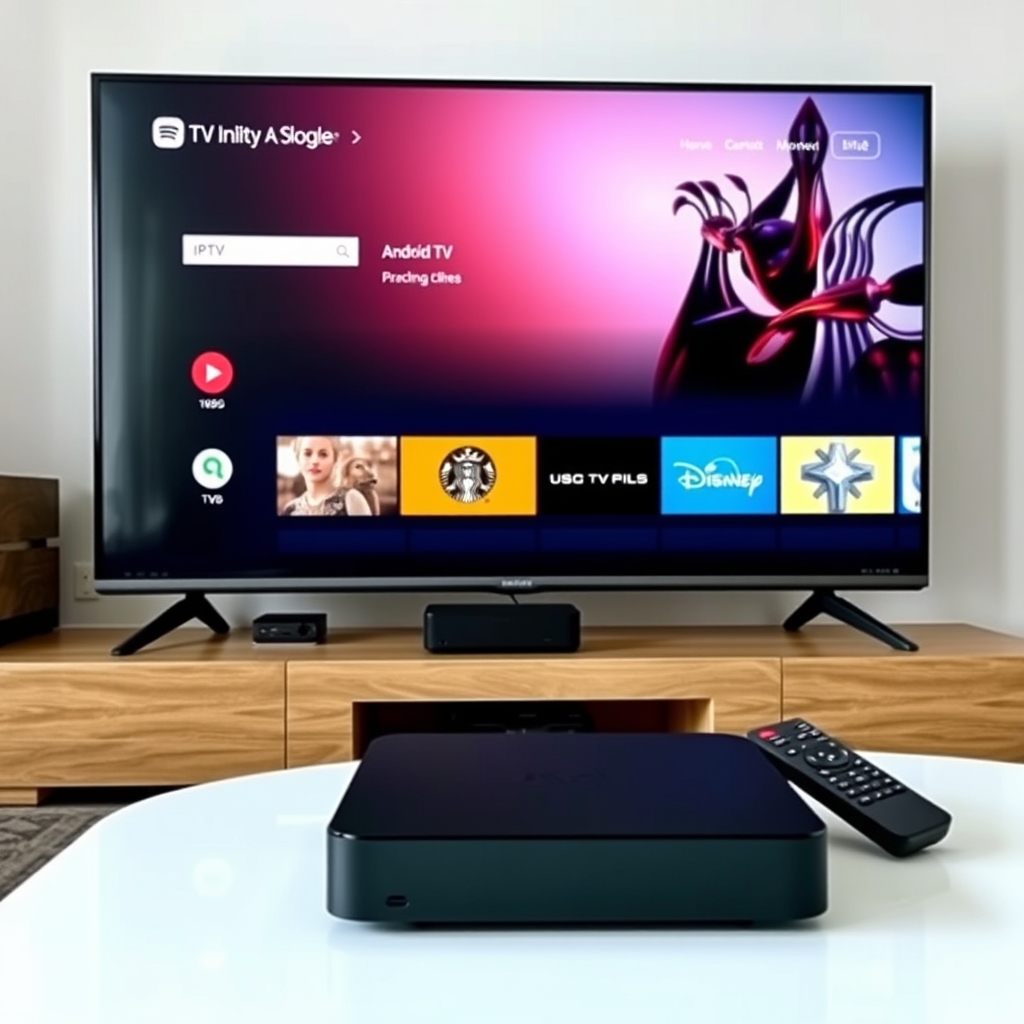
Before diving into how to use IPTV on Android Box, you'll need to gather a few essential components. First, you need a compatible Android TV box or device. Most modern Android TV devices work perfectly, but check that your specific model supports the IPTV apps you plan to use. Second, ensure you have a stable internet connection—IPTV streaming typically requires at least 10-15 Mbps for HD content and 25+ Mbps for 4K streams.
You'll also need:
- An active IPTV subscription (we recommend starting with a free trial here)
- Your IPTV service credentials (usually provided via email)
- A television with an available HDMI port
- The Android box remote or a compatible keyboard/mouse
Having these items ready will make the process of setting up IPTV on your Android box much smoother and faster.
Step-by-Step Installation Guide
Now let's walk through the actual process of how to use IPTV on Android Box. The installation typically involves just a few straightforward steps that anyone can follow, even with minimal technical experience.
Step 1: Connect Your Android Box
Begin by connecting your Android TV box to your television using an HDMI cable. Plug the device into power and ensure it's connected to your home Wi-Fi network or Ethernet cable. Navigate through the initial setup if this is your first time using the device.
Step 2: Install an IPTV Player App
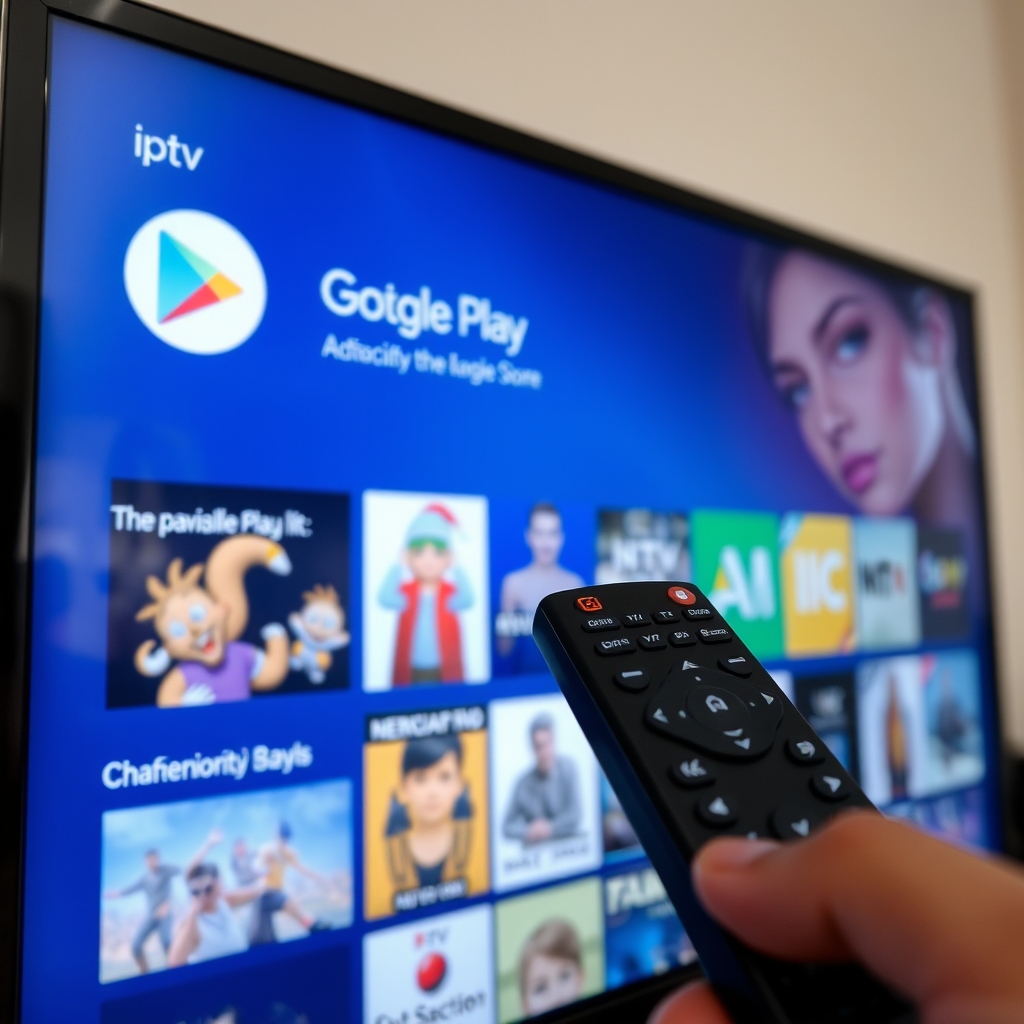
Navigate to the Google Play Store on your Android box. Search for and install a reliable IPTV player application. Some popular options include IPTV Smarters, TiviMate, or Perfect Player. These apps serve as the interface between your IPTV service and your television.
Step 3: Launch and Configure the App
Once installed, open your chosen IPTV player. You'll typically find an option to add a new playlist or subscription. This is where you'll enter the details provided by your IPTV service provider.
Configuring Your IPTV Service
Configuring your IPTV service correctly is crucial to learning how to use IPTV on Android Box effectively. After installing your preferred IPTV player app, you'll need to input your service details. Most IPTV providers offer several connection methods:
- M3U URL: A web link that contains your channel playlist
- Xtream Codes API: Requires username, password, and server URL
- EPG URL: Electronic Program Guide for show schedules
If you're using our service, you'll receive these details after signing up for your free 48-hour trial. Simply enter the information in the appropriate fields within your IPTV app. The app will then load your channel list, which for our service includes over 9,000 live channels spanning sports, news, entertainment, international content, and premium networks.
Take time to explore the app settings. You can usually customize the interface, create favorite channel lists, set up parental controls, and adjust video playback settings to match your preferences and internet speed.
Best IPTV Apps for Android Box
Choosing the right application significantly impacts your experience when learning how to use IPTV on Android Box. Different apps offer varying features, interfaces, and customization options. Here are the top recommendations:
- IPTV Smarters Pro: User-friendly interface with support for multiple playlists, VOD, and series. Excellent for beginners.
- TiviMate: Premium interface with advanced features like recording, multiple playlists, and beautiful EPG display.
- Perfect Player: Lightweight and reliable with good EPG support and simple navigation.
- OTT Navigator: Feature-rich with extensive customization options for power users.
- IMPlayer: Modern interface with good performance and regular updates.
Most of these apps offer free versions with basic functionality, while premium versions (usually requiring a one-time payment) unlock advanced features. We recommend trying a few to see which interface you prefer when setting up IPTV on your Android box.
Troubleshooting Common Issues
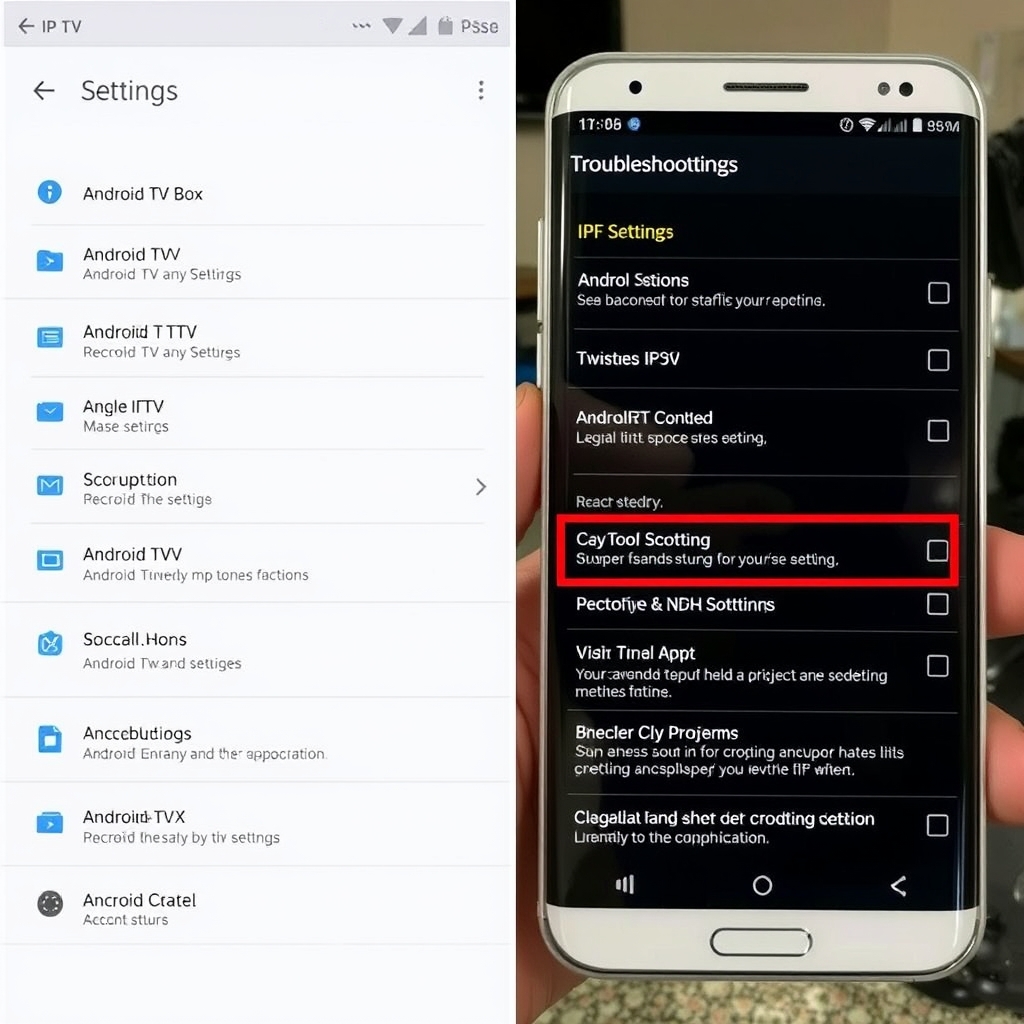
Even with a proper setup, you might encounter some challenges when learning how to use IPTV on Android Box. Here are solutions to common problems:
Buffering or Freezing: This is often related to internet speed or server issues. Try reducing video quality in your app settings, restarting your router, or connecting via Ethernet instead of Wi-Fi. Also, check if other devices on your network are consuming bandwidth.
Channels Not Loading: Verify your subscription is active and your credentials are entered correctly. Sometimes simply restarting the app or Android box resolves this issue. If problems persist, contact your IPTV provider's support.
EPG Not Showing: Ensure your EPG URL is correctly entered in the app settings. Some apps require manual EPG updates—check the app's guide or settings menu for update options.
App Crashes: Try clearing the app cache and data (Settings > Apps > [Your IPTV App] > Storage). If that doesn't work, uninstall and reinstall the application.
For more detailed troubleshooting, visit our FAQ page where we address common IPTV questions and solutions.
Optimizing Your IPTV Experience
Once you've mastered the basics of how to use IPTV on Android Box, you can enhance your viewing experience with these optimization tips:
- Use a Wired Connection: For the most stable streaming, connect your Android box directly to your router via Ethernet cable rather than using Wi-Fi.
- Organize Your Channels: Most IPTV apps allow you to create favorite lists, hide unwanted channels, and categorize content by type (sports, news, movies, etc.).
- Adjust Buffer Settings: If you experience occasional buffering, increase the buffer size in your IPTV app settings.
- External Storage: If your Android box supports it, add external storage for recording live TV or caching content.
- Regular Updates: Keep both your Android box system software and IPTV apps updated for the best performance and security.
Consider pairing your Android box with a quality streaming device remote or even a mini keyboard with touchpad for easier navigation, especially when searching for content or entering text.
Conclusion: Start Streaming Today
Learning how to use IPTV on Android Box unlocks a world of entertainment possibilities with access to thousands of channels from around the globe. The setup process is straightforward, and with the right application and configuration, you can enjoy seamless streaming of live TV, sports, movies, and more directly on your television.
The best way to experience this is to try it for yourself. We offer a comprehensive free 48-hour IPTV trial with access to over 9,000 live channels, giving you plenty of time to test the service on your Android box. Whether you're looking to cut the cord from traditional cable or simply expand your viewing options, IPTV on Android box provides a flexible, cost-effective solution for modern entertainment needs.
Ready to transform your TV viewing experience? Sign up for your free trial today and discover why so many users are switching to IPTV on their Android devices. For more guides and tips, check out our more guides section where we cover everything from advanced IPTV features to comparing different streaming devices.