Table of Contents
- What is IPTV and Why Use It on Firestick?
- Preparation: What You Need Before Installing
- Step 1: Enable Unknown Sources on Firestick
- Step 2: Install the Downloader App
- Step 3: Install Your IPTV Application
- Step 4: Configure Your IPTV Service
- Step 5: Troubleshooting Common Issues
- Best IPTV Apps for Amazon Firestick
- Safety and Legal Considerations
- Conclusion: Start Streaming Today
What is IPTV and Why Use It on Firestick?
IPTV (Internet Protocol Television) delivers television content over the internet instead of traditional cable or satellite. When you learn how to install IPTV on Amazon Firestick, you transform your device into a powerful entertainment hub. The Firestick's compact design and affordable price make it the perfect companion for IPTV services, giving you access to thousands of channels from around the world.
Our service offers over 9,000 live channels, including sports, movies, news, and international content. The best part? You can test it risk-free with our 48-hour free trial here before committing. According to Statista's IPTV market report, IPTV subscriptions continue to grow globally as more viewers seek flexible, cost-effective alternatives to traditional TV.
Preparation: What You Need Before Installing
Before we dive into how to install IPTV on Amazon Firestick, let's ensure you have everything ready:
- An Amazon Firestick (any generation, though newer models perform better)
- Stable internet connection (minimum 15 Mbps for HD streaming)
- Your IPTV subscription details or free trial credentials
- A compatible IPTV player application
- Approximately 15-20 minutes of setup time
If you haven't chosen an IPTV service yet, our platform offers one of the most comprehensive channel lineups available. You can start your free trial here to get instant access while following this guide.
Step 1: Enable Unknown Sources on Firestick
The first step in learning how to install IPTV on Amazon Firestick involves changing a crucial security setting. Since most IPTV apps aren't available on the official Amazon Appstore, you need to enable installations from unknown sources.
Here's exactly how to do it:
- From your Firestick home screen, navigate to Settings (the gear icon)
- Select My Fire TV or Device (depending on your Fire OS version)
- Choose Developer Options
- Toggle Apps from Unknown Sources to ON
- Confirm any warning message that appears
This setting allows you to install applications from outside the Amazon ecosystem. Don't worry - this is completely safe when installing reputable IPTV applications from trusted sources.
Why This Step is Necessary
Amazon restricts installations to their curated Appstore for security reasons. However, most specialized IPTV applications operate outside this ecosystem. Enabling this setting is standard practice for installing IPTV on Firestick and similar Android-based devices.
Step 2: Install the Downloader App
Now that you've enabled unknown sources, you need a tool to download your IPTV application. The Downloader app serves as your gateway to installing various applications not available in the Amazon Appstore.
Follow these simple steps:
- Return to your Firestick home screen
- Use the search function (magnifying glass icon) and type "Downloader"
- Select the Downloader app from the search results (by AFTVnews)
- Click Download or Get to install it
- Wait for the installation to complete (usually 30-60 seconds)
The Downloader app is free and widely trusted within the Firestick community. It functions as a simple web browser that can download and install APK files directly to your device.
Step 3: Install Your IPTV Application
This is the core of learning how to install IPTV on Amazon Firestick. You'll use the Downloader app to install your chosen IPTV player. We recommend starting with a popular, user-friendly option like IPTV Smarters, TiviMate, or our own custom application.
Here's the process:
- Open the Downloader app from your Firestick app library
- In the URL field, enter the download link for your chosen IPTV app
- For IPTV Smarters, use:
https://bit.ly/3smarters(example) - Click Go and wait for the APK file to download
- When prompted, select Install
- After installation, choose Done (not Open yet)
- Return to the Downloader app and select Delete to remove the APK file
- Select Delete again to confirm
You'll now find your IPTV application in your Firestick's app library under "Your Apps & Channels." Some users prefer to move it to their home screen for easier access.
Choosing the Right IPTV Application
Different IPTV apps offer varying features:
- IPTV Smarters Pro: User-friendly, great for beginners
- TiviMate: Premium interface with advanced features
- Our Custom App: Optimized specifically for our service
Most IPTV services work with multiple applications, so you can experiment to find your preference. Check our FAQ page for recommended applications that work best with our service.
Step 4: Configure Your IPTV Service
With your application installed, it's time to configure it with your IPTV service credentials. This is where you connect to our massive library of 9,000+ channels.
Follow these configuration steps:
- Launch your newly installed IPTV application
- Select Add New User or Login
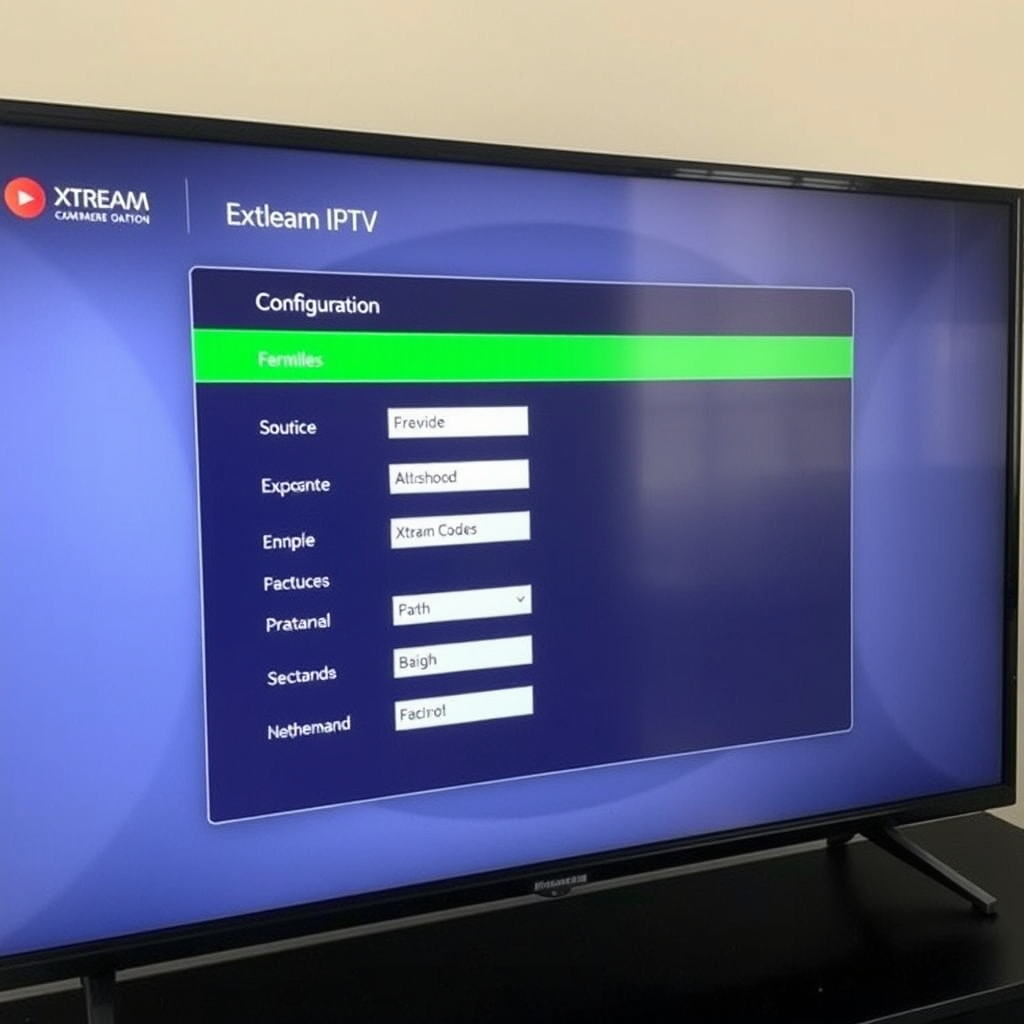
- Choose Login with Xtream Codes API (most common method)
- Enter the following details provided with your subscription:
- Portal URL: Provided in your welcome email
- Username: Your account username
- Password: Your account password
- Click Add User or Connect
- Wait for the application to load your channel playlist
If you're using our free trial, you'll receive these credentials immediately after signing up. The configuration process typically takes 1-2 minutes, after which you'll have access to all available channels.
Alternative Configuration: M3U URL Method
Some applications support M3U playlist URLs instead of Xtream Codes. If your application requires this:
- Select Add Playlist instead of Xtream Codes
- Enter the M3U URL provided by your service
- Give your playlist a name (e.g., "My IPTV")
- Save and wait for channels to load
Both methods achieve the same result - connecting you to our extensive channel library. If you encounter any issues during configuration, our support team can guide you through the process.
Step 5: Troubleshooting Common Issues
Even with a perfect setup, you might encounter occasional issues. Here are solutions to common problems when learning how to install IPTV on Amazon Firestick:
Buffering or Freezing Issues
- Check your internet speed: Run a speed test on your Firestick
- Use wired connection: Consider an Ethernet adapter for Firestick
- Clear cache: Go to Settings > Applications > Manage Installed Applications > Your IPTV App > Clear Cache
- Reduce quality: Switch from 1080p to 720p in app settings
Application Won't Install
- Verify "Unknown Sources" is still enabled
- Ensure you have sufficient storage space
- Try restarting your Firestick before attempting again
- Use a different download link for the application
Channels Not Loading
- Verify your subscription is active
- Check your login credentials are correct
- Ensure your playlist URL or Xtream Codes are current
- Contact your IPTV provider for updated server information
Most issues can be resolved with these basic troubleshooting steps. For persistent problems, visit our detailed FAQ section or contact our support team.
Best IPTV Apps for Amazon Firestick
While we've covered the installation process, choosing the right application enhances your viewing experience. Here are the top applications for installing IPTV on Firestick:
1. IPTV Smarters Pro
This popular application boasts an intuitive interface perfect for beginners. It supports multiple playlists, parental controls, and catch-up features. The free version works well, while the pro version offers additional customization.
2. TiviMate
Considered the premium option, TiviMate offers a traditional TV guide experience with advanced recording capabilities (requires external storage). While it's a paid application, many users consider it worth the investment for serious IPTV viewing.
3. Our Custom Application
We offer a customized application optimized specifically for our service. It includes seamless integration, automatic updates, and dedicated support. This application often provides the most stable experience with our channel lineup.
4. Perfect Player
A lightweight option that works well on older Firestick models. Perfect Player uses a simple grid-style EPG (Electronic Program Guide) that some users prefer for its simplicity.
You can experiment with different applications to find which works best for your viewing preferences and Firestick model.
Safety and Legal Considerations
When learning how to install IPTV on Amazon Firestick, it's important to understand the safety and legal aspects:
Using a VPN for Privacy
While IPTV itself is legal, some content sources may exist in gray areas. We recommend using a VPN (Virtual Private Network) for:
- Protecting your privacy and viewing habits
- Bypassing potential ISP throttling of streaming traffic
- Accessing geo-restricted content legally
Popular VPNs for Firestick include ExpressVPN, NordVPN, and IPVanish. Most offer dedicated Firestick applications that are easy to install and configure.
Choosing Legitimate IPTV Services
Always select IPTV services that:
- Offer transparent pricing without hidden fees
- Provide customer support and clear terms of service
- Use secure payment methods
- Offer legitimate free trials (like our 48-hour trial here)
- Have positive user reviews and reputation
Our service operates with proper licensing agreements for the content we provide, ensuring you can enjoy your favorite channels without concerns.
Device Security
Keep your Firestick secure by:
- Regularly updating your Fire OS
- Only installing applications from trusted sources
- Using strong, unique passwords for your IPTV service
- Installing security applications from the Amazon Appstore
Conclusion: Start Streaming Today
Now that you know exactly how to install IPTV on Amazon Firestick, you're ready to transform your viewing experience. The process is straightforward: enable unknown sources, install Downloader, choose your IPTV application, configure with your service credentials, and start enjoying thousands of channels.
The beauty of this setup is its flexibility. You're not locked into long-term contracts or expensive cable packages. With our service, you can access 9,000+ live channels, including premium sports, latest movies, news networks, and international content from around the globe.
Ready to experience the difference? Start your free 48-hour trial here and follow this guide to begin streaming within minutes. Whether you're a sports fanatic, movie enthusiast, or news junkie, learning how to install IPTV on Amazon Firestick opens up a world of entertainment possibilities right on your television.
Have questions about the installation process or our service? Check our more guides for additional tutorials or contact our support team for personalized assistance. Happy streaming!