Table of Contents
- Understanding IPTV Speed Requirements
- 1. Check Your Internet Connection Speed
- 2. Use a Wired Ethernet Connection
- 3. Optimize Router Placement and Settings
- 4. Close Background Applications
- 5. Update Your IPTV App and Device
- 6. Clear App Cache and Data
- 7. VPN Considerations for IPTV
- 8. Switch IPTV Server/Portal
- 9. Check Device Performance
- 10. Check for ISP Throttling
- 11. Adjust Streaming Quality Settings
- 12. Choose a Professional IPTV Service
- Conclusion: Enjoy Buffer-Free IPTV
Understanding IPTV Speed Requirements
Before diving into solutions for how to increase IPTV streaming speed, it's crucial to understand what speed you actually need. IPTV (Internet Protocol Television) delivers television content over the internet rather than through traditional terrestrial, satellite, or cable formats. Unlike downloading, streaming requires a consistent, stable connection. For standard definition (SD) streams, you typically need at least 3-5 Mbps. High definition (HD) content requires 8-12 Mbps, while 4K or Ultra HD streams demand 25 Mbps or more. These are per-stream requirements—if multiple devices are streaming simultaneously in your household, you'll need to multiply accordingly. The key metric for streaming isn't just maximum speed (measured in Mbps), but also low latency (ping), minimal jitter (variation in latency), and zero packet loss. A connection might have high maximum speed but still buffer constantly if these other factors are poor.
1. Check Your Internet Connection Speed
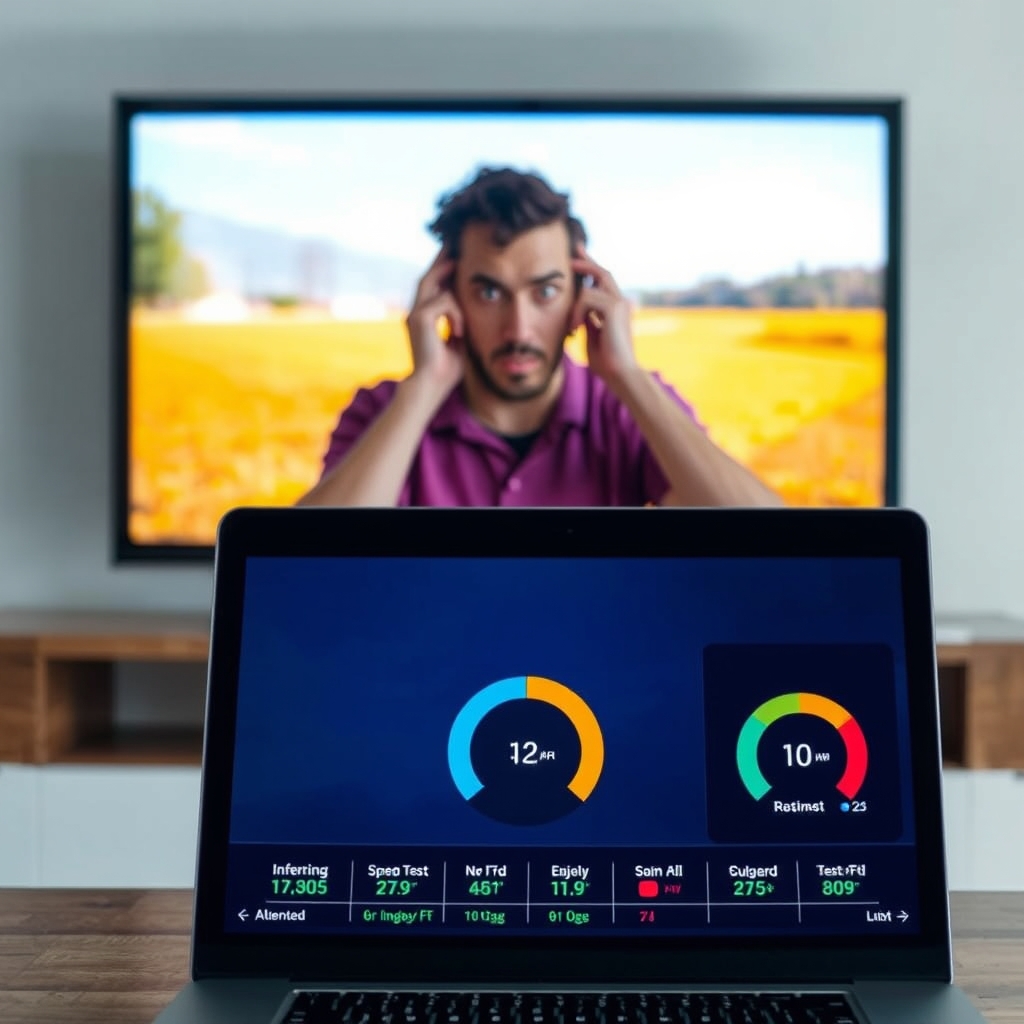
The first and most fundamental step in learning how to increase IPTV streaming speed is to test your actual internet connection. Use reputable speed test websites like Ookla's Speedtest or Fast.com. Run the test on the device you use for IPTV, or as close to it as possible (same network). Perform tests at different times of day, especially during your typical viewing hours. Compare the results to the requirements mentioned above. If your speed is consistently below what's needed, the issue might be with your Internet Service Provider (ISP) plan. Consider upgrading to a higher-speed package. Also, check if you're getting the speeds you're paying for—if not, contact your ISP. Remember to test both download and upload speeds, though download is more critical for streaming.
What to Look For in Speed Tests
Don't just glance at the big download number. Pay attention to:
- Ping/Latency: Should be below 50ms for optimal streaming.
- Jitter: Should be minimal (under 10ms is good).
- Packet Loss: Should be 0%. Any packet loss can cause buffering.
- Consistency: Run multiple tests. Does speed fluctuate wildly?
2. Use a Wired Ethernet Connection
Wi-Fi is convenient, but it's often the culprit behind slow IPTV streaming speeds. Wireless signals are susceptible to interference from walls, other electronic devices (microwaves, cordless phones), and even neighboring Wi-Fi networks. For the most stable connection possible, connect your streaming device (Smart TV, box, or computer) directly to your router using an Ethernet cable. This provides a dedicated, interference-free pathway for data. The difference can be dramatic, especially for high-bitrate HD and 4K streams. If running a cable isn't practical, consider using Powerline adapters, which use your home's electrical wiring to create a wired-like network connection.
3. Optimize Router Placement and Settings
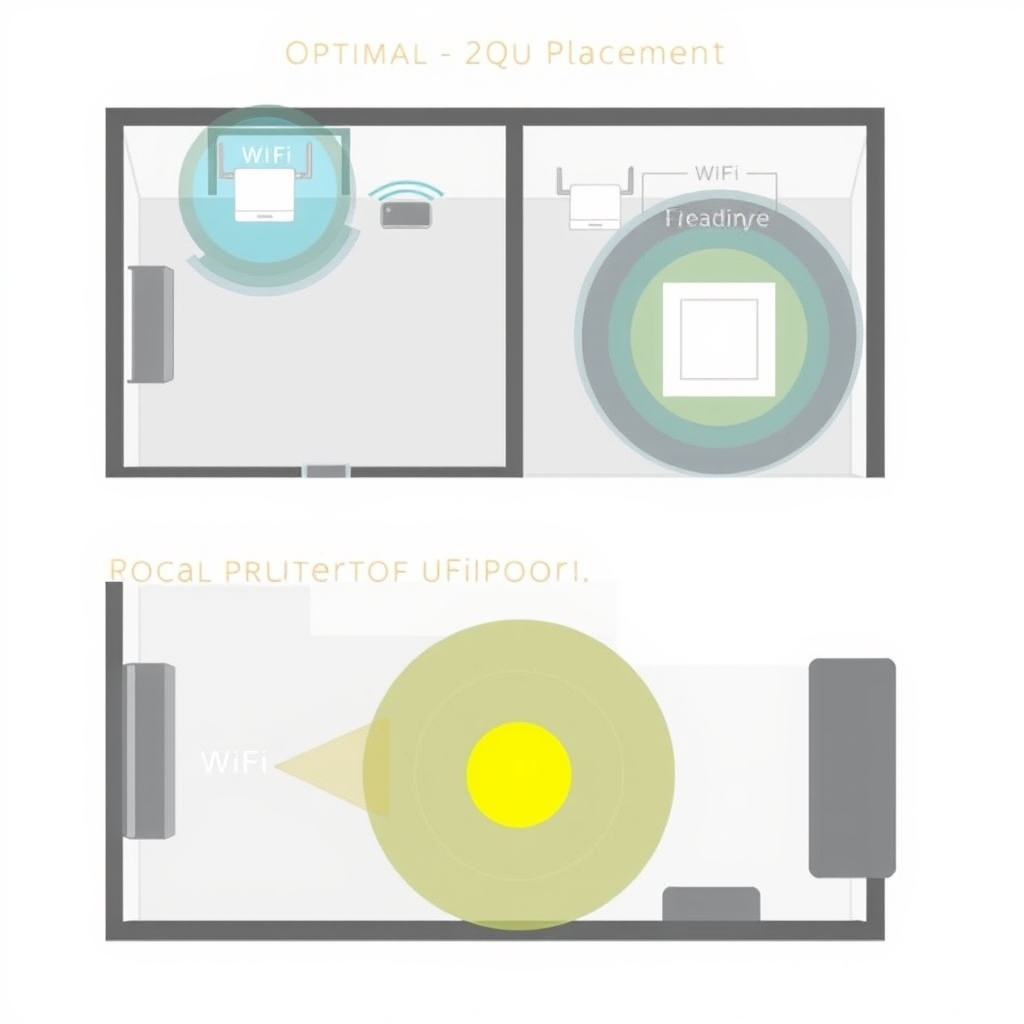
If you must use Wi-Fi, router placement is critical. Place your router in a central, elevated location, away from walls, metal objects, and other electronics. Ensure your streaming device is within a good range. Log into your router's admin panel (usually via a web browser) and check two key settings. First, ensure you're using the 5 GHz band if your router and device support it. It's faster and less congested than the older 2.4 GHz band, though it has slightly shorter range. Second, check for Quality of Service (QoS) settings. QoS allows you to prioritize traffic from your streaming device, ensuring it gets bandwidth priority over other devices doing less critical tasks like downloads or web browsing.
4. Close Background Applications and Devices
Your internet bandwidth is a shared resource. Other devices and applications on your network can consume large amounts of data, starving your IPTV stream. On the device you're streaming from, close any unnecessary applications, especially those that might be updating, syncing, or downloading in the background. On other devices in your home (phones, tablets, computers, game consoles), pause any large downloads, cloud backups, or online gaming sessions while you're watching IPTV. A single device running a software update can easily saturate your connection and cause buffering.
5. Update Your IPTV App and Device
Outdated software can lead to performance issues and bugs that affect streaming efficiency. Regularly check for and install updates for your IPTV player application (like Tivimate, Smarters Player, or the service's proprietary app). Similarly, keep the operating system of your streaming device (Fire Stick, Android TV, Smart TV, etc.) up to date. Manufacturers often release updates that improve network stability and media playback performance. An update could resolve a known bug that's causing your speed issues.
6. Clear App Cache and Data
Over time, IPTV apps accumulate cached data. While cache is meant to speed things up, a corrupted or overly large cache can have the opposite effect, slowing down the app and causing playback issues. Navigate to your device's settings, find the application manager, locate your IPTV app, and clear its cache. If problems persist, you can try clearing the app's data (note: this will reset the app to its default state, so you may need to re-enter your login/server details). This is a simple but often effective fix for how to increase IPTV streaming speed on a device that was previously working well.
7. VPN Considerations for IPTV
Using a Virtual Private Network (VPN) can sometimes improve speed, but it can also slow it down. If your Internet Service Provider is intentionally throttling (slowing down) streaming traffic, a VPN can bypass this by encrypting your data, hiding the fact that you're streaming. However, VPNs add an extra hop to your connection, which can increase latency and potentially reduce speed if the VPN server is slow or far away. If you use a VPN, try connecting to a server that's geographically close to you and known for good performance. Test your streaming speed with the VPN on and off to see which is better for your specific situation.
8. Switch IPTV Server or Portal
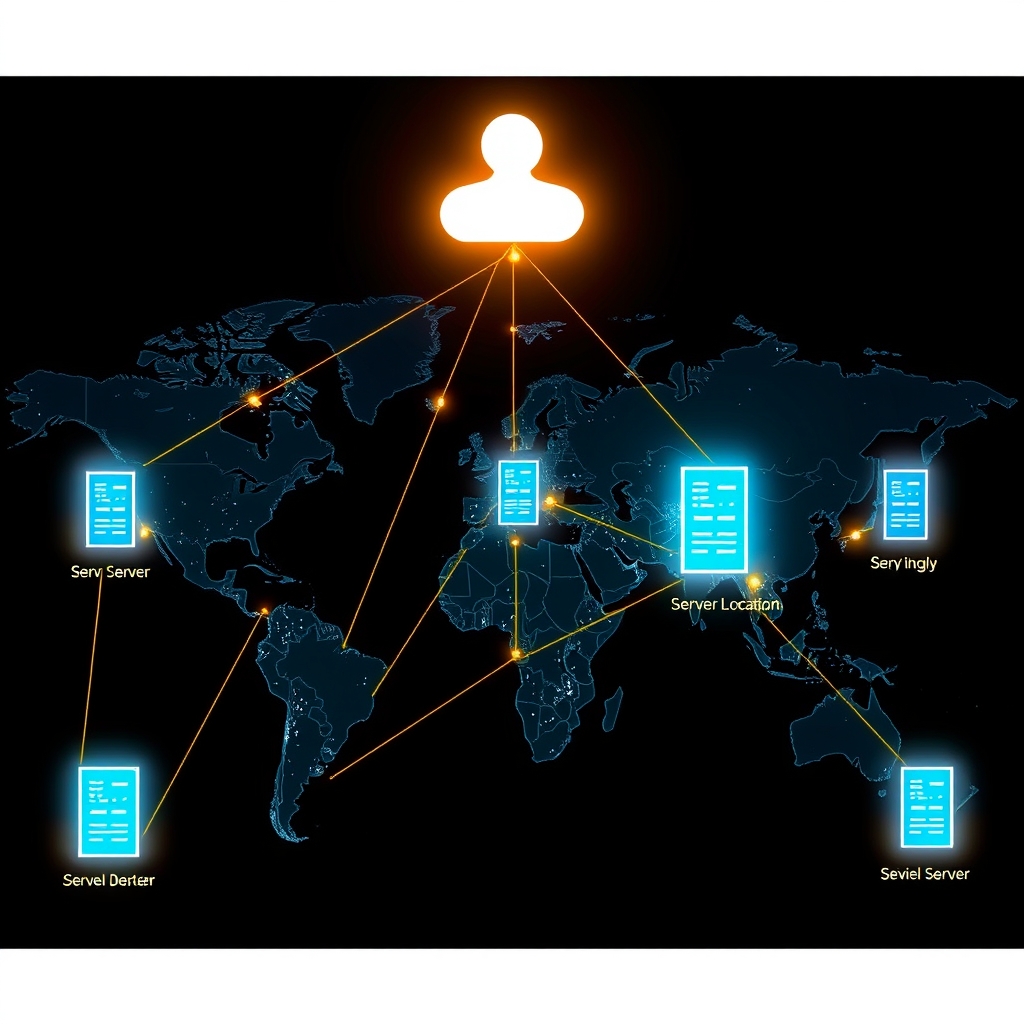
Your IPTV service provider likely operates multiple servers in different regions. If you're connected to a server that's geographically distant or currently overloaded with users, your streaming speed will suffer. Check your service's dashboard or settings within the app to see if there's an option to switch to a different server or portal URL. Try selecting one that is closer to your physical location. A quality service, like the one offering a free IPTV trial here, will have robust, well-distributed server infrastructure to minimize this issue for its users.
9. Check Device Performance and Hardware
Not all streaming devices are created equal. Older, underpowered devices (like first-generation Fire Sticks or low-end Android boxes) may struggle to decode high-quality video streams efficiently, causing stuttering that looks like a network issue. Ensure your device meets the recommended specifications for modern streaming. Also, if your device is full of other apps and files, it may be low on storage or RAM, hindering performance. Try freeing up space and closing other apps. Sometimes, a simple device restart can clear out memory and resolve temporary performance hiccups.
10. Check for ISP Throttling
Internet Service Providers sometimes throttle, or intentionally slow down, specific types of traffic—often including high-bandwidth activities like video streaming—especially during peak hours. To test for this, try streaming at an unusual time (like very early in the morning). If your speed and quality are perfect then but terrible during prime time, throttling is a likely suspect. As mentioned, a reliable VPN can often circumvent this. You can also contact your ISP to inquire about their policies.
11. Adjust Streaming Quality Settings
If you've tried everything and are still struggling, manually lowering the stream quality within your IPTV app can provide an immediate fix. Instead of trying to force a 4K or high-bitrate 1080p stream, switch to a standard 720p or lower HD setting. This significantly reduces the required bandwidth and can turn an unwatchable, buffering stream into a smooth one. It's a trade-off between quality and stability. Most good IPTV apps allow you to set a default maximum resolution or bitrate.
12. Choose a Professional IPTV Service with Quality Infrastructure
Ultimately, the most important factor in how to increase IPTV streaming speed is the quality of the service itself. A professional provider invests in high-bandwidth, low-latency server networks with global content delivery networks (CDNs). They optimize their streams and have reliable, uncrowded servers. Free or extremely cheap services often overload their servers, leading to constant buffering. Opting for a reputable service with positive reviews and a robust infrastructure is the foundational step. You can test the performance of a top-tier service firsthand with our free 48-hour IPTV trial, which gives you access to over 9,000 channels to evaluate speed and stability.
Conclusion: Enjoy Buffer-Free IPTV Streaming
Learning how to increase IPTV streaming speed involves a combination of optimizing your home network, configuring your devices, and selecting a high-quality service provider. Start with the basics: test your internet, use a wired connection if possible, and eliminate bandwidth hogs. Then, work through software and device optimizations like updates and cache clearing. Finally, ensure your IPTV provider has the infrastructure to deliver a fast, stable stream. By systematically applying these 12 methods, you can eliminate buffering, reduce lag, and enjoy a seamless viewing experience across thousands of live channels, sports events, and movies. For the best results, begin your journey with a proven service—experience what true buffer-free IPTV looks like by starting your free trial today.