Table of Contents
What is a Mag Box?
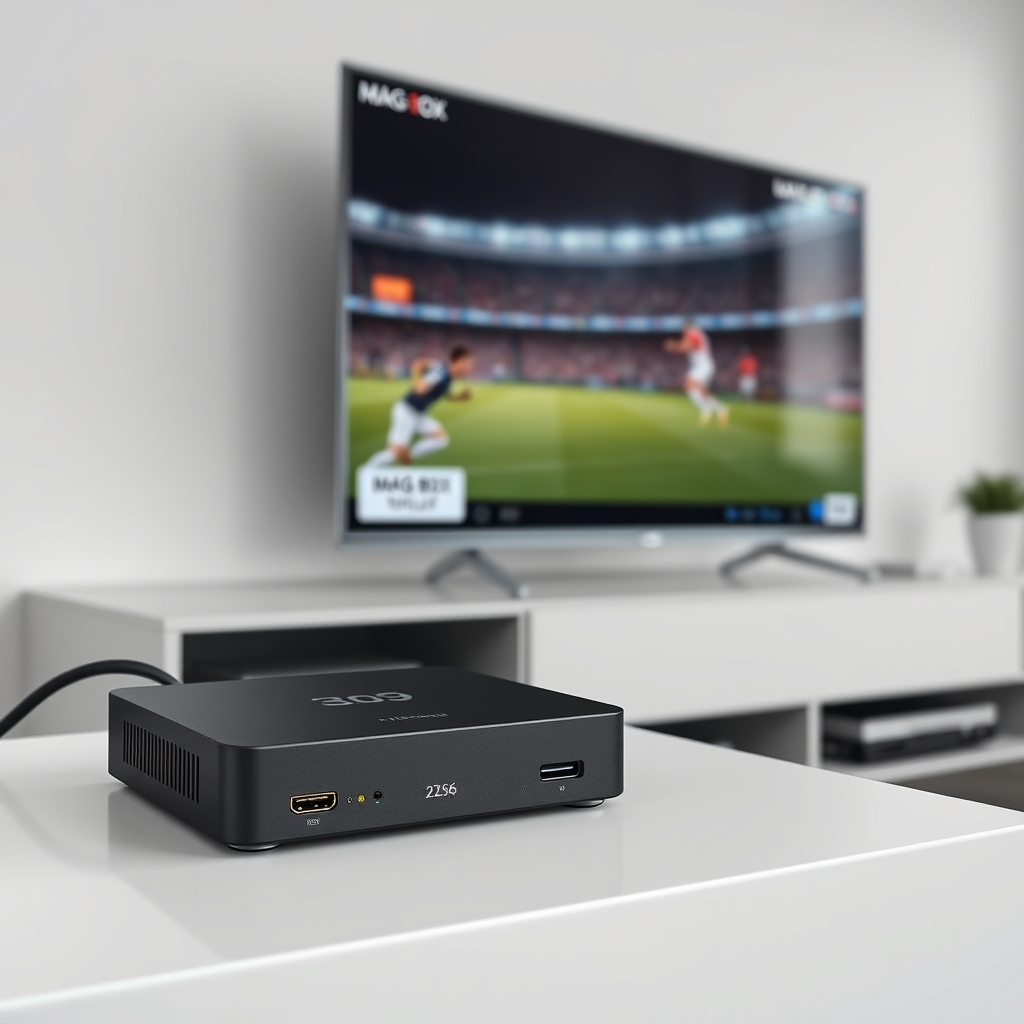
Mag Box devices are specialized set-top boxes designed specifically for IPTV streaming. Manufactured by Infomir, these popular devices offer a seamless, user-friendly interface optimized for watching live TV, video-on-demand, and catch-up services over an internet connection. Unlike generic Android boxes, Mag Boxes run on a proprietary operating system that provides stable performance and reliable IPTV playback with minimal buffering.
Common models include the MAG 254, MAG 256, MAG 322, and MAG 424. Each varies in processing power and features, but the configuration process for IPTV services remains largely consistent across the lineup. Understanding your specific Mag Box model can help with troubleshooting, but the core steps for how to configure IPTV on Mag Box are universal.
Prerequisites Before You Configure
Before diving into how to configure IPTV on Mag Box, ensure you have everything ready. Proper preparation prevents most setup issues.
Essential Requirements:
- Mag Box Device: Powered on and connected to your TV via HDMI.
- Stable Internet Connection: Minimum 15 Mbps for HD, 25+ Mbps for 4K streaming. Wired Ethernet is recommended for stability.
- IPTV Subscription Details: Your portal URL (provided by your service), username, and password.
- Remote Control: Mag Box remote with functioning batteries.
- Active IPTV Service: A subscription from a reliable provider like Instant IPTV Trial here.
Pro Tip: Test your internet speed using a service like Speedtest by Ookla before beginning. Consistent speeds are crucial for buffer-free IPTV viewing on your Mag Box.
Step-by-Step: How to Configure IPTV on Mag Box
Follow these exact steps to configure your Mag Box for IPTV. The process typically takes 5-10 minutes.
Step 1: Initial Setup and Network Connection
Connect your Mag Box to power and your TV. Turn on both devices. The Mag Box will boot to its home screen. Using your remote, navigate to Settings (the gear icon). Select Network and then Network Settings. Choose either wired (Ethernet) or wireless (Wi-Fi) connection. For best results, use a wired connection to minimize buffering.
Step 2: Accessing the Portal Configuration
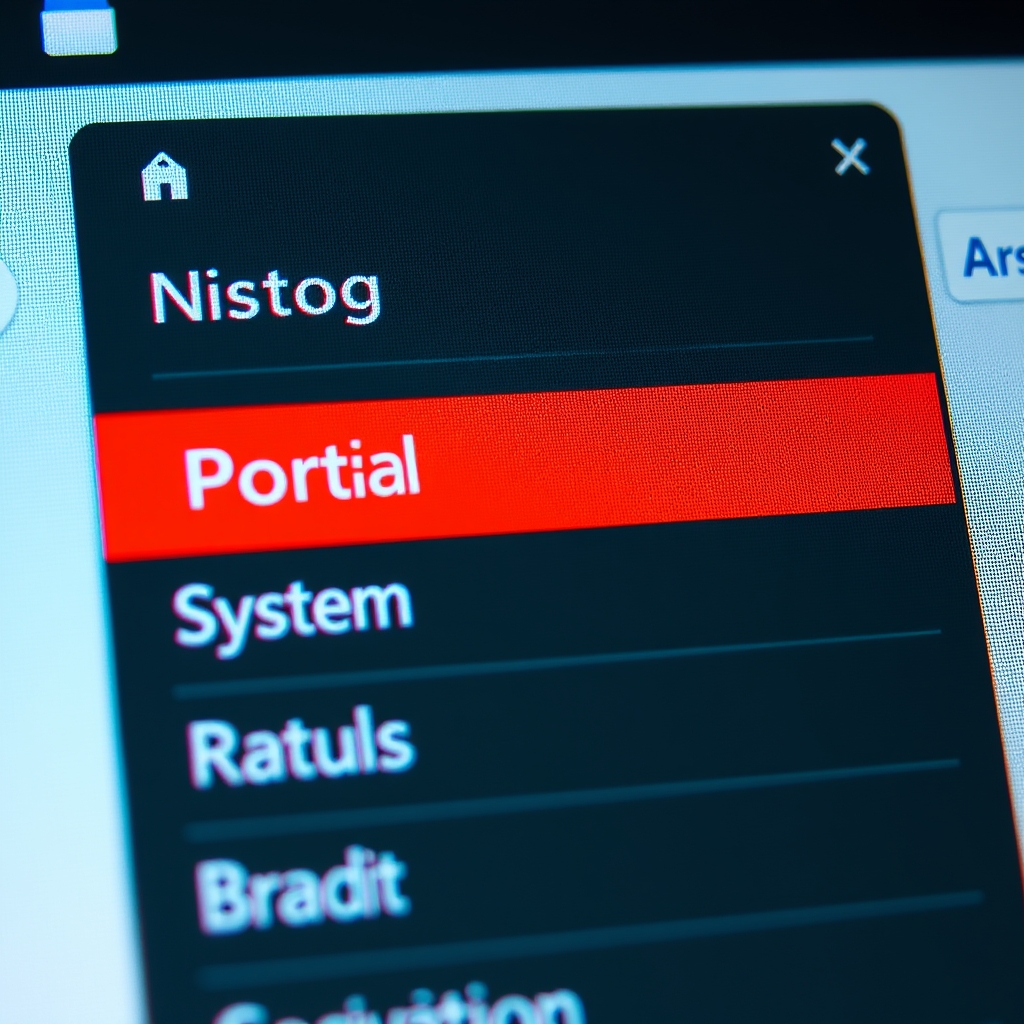
Return to the main menu. Navigate to Settings again, then select System Settings. You may need a password. The default is often 0000 or 1111. Inside System Settings, find and select Servers and then Portals. This is where you'll input your IPTV service details.
Step 3: Entering Your IPTV Portal URL
In the Portals menu, you'll see fields for Portal 1 Name and Portal 1 URL. For the name, you can enter something like "Instant IPTV." For the URL, carefully enter the exact portal address provided by your IPTV service. This is the most critical step in learning how to configure IPTV on Mag Box. Double-check for typos.
Step 4: Saving and Restarting
After entering the URL, press the OK or Green button on your remote to save. Exit the menus back to the home screen. Now, restart your Mag Box. You can do this by unplugging it for 30 seconds or via the restart option in settings. Upon reboot, it should automatically connect to your IPTV portal and load the channel list.
Configuring Your IPTV Portal Settings
Sometimes, additional settings are required for optimal performance. If your service provides a MAC address binding, you may need to find your Mag Box's MAC address. Go to Settings > System Settings > Information. The MAC address will be listed. Provide this to your IPTV provider if requested.
Within the portal settings, you might also adjust the Time Zone under System Settings > Time to ensure EPG (Electronic Program Guide) data displays correctly. A correct EPG is essential for a good viewing experience.
Troubleshooting Common Mag Box Issues
Even with a correct setup, you might encounter issues. Here are quick fixes.
- No Connection/"Portal Not Available": Verify your internet is working. Re-check the portal URL for errors. Restart your router and Mag Box.
- Buffering or Freezing: Switch to a wired Ethernet connection. Check your internet speed. Lower the video resolution in your IPTV service's internal settings if available.
- Black Screen on Some Channels: This is often a source issue from the provider. Try another channel. Ensure your subscription is active via your service's FAQ or support.
- Remote Not Responding: Replace the batteries. Ensure you're pointing it directly at the Mag Box.
If problems persist, a factory reset (Settings > System Settings > Factory Reset) can clear software glitches, but you will need to reconfigure your IPTV portal afterward.
Optimizing Your Mag Box Performance
To get the most from your Mag Box after you configure IPTV, follow these tips.
Network Optimization:
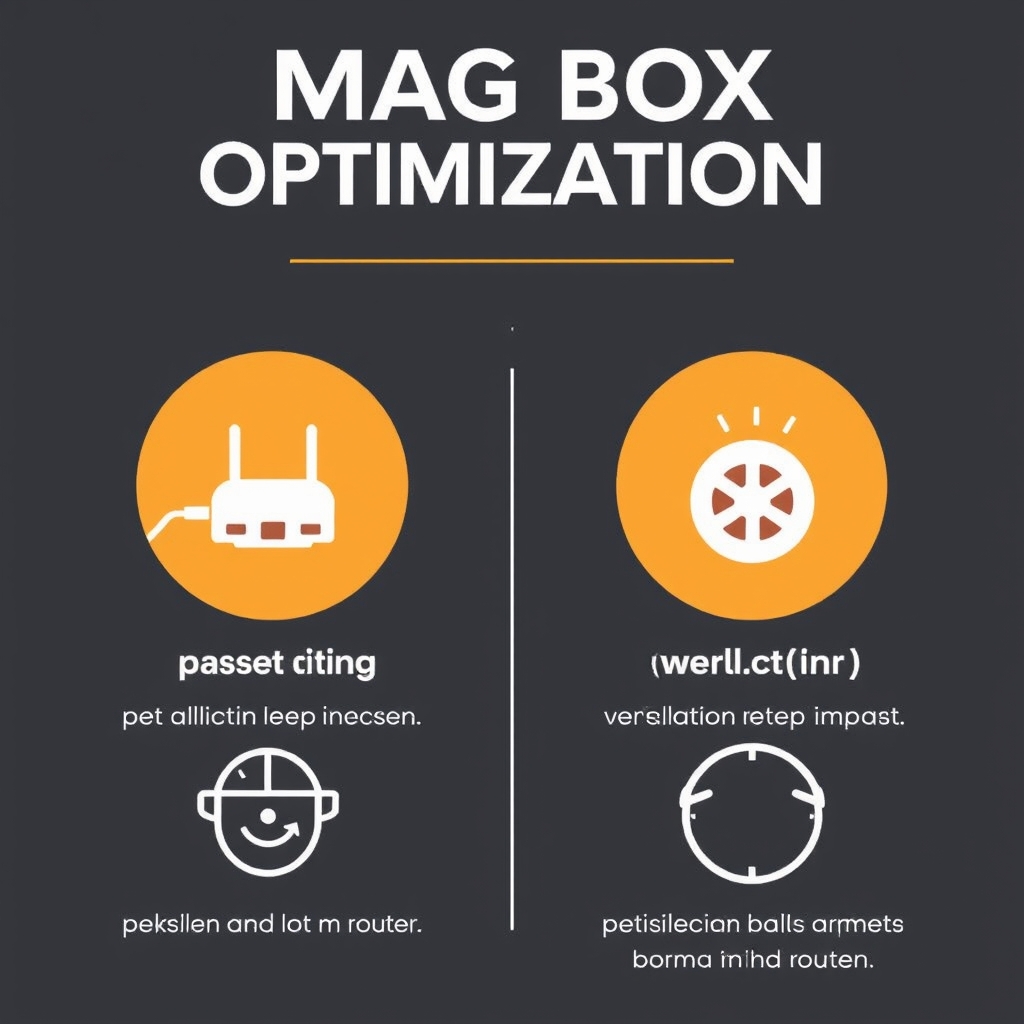
Use a Quality of Service (QoS) setting on your router to prioritize your Mag Box's traffic. This reduces buffering during peak household internet usage. Position your router close to the Mag Box if using Wi-Fi, or use a powerline adapter for a more stable wired-like connection over your home's electrical wiring.
Device Maintenance:
Regularly restart your Mag Box (once a week) to clear its cache and prevent slowdowns. Keep the device in a well-ventilated area to prevent overheating, which can cause performance issues.
Why Choose Instant IPTV for Your Mag Box
Now that you know how to configure IPTV on Mag Box, you need a reliable service. Instant IPTV is built for devices like the Mag Box.
- 9,000+ Live Channels: Global selection including sports, news, entertainment, and PPV events.
- Mag Box Optimized: Our portal is tested and guaranteed to work seamlessly with Mag devices.
- Free 48-Hour Trial: Test our service risk-free. No payment details required. Get your free IPTV trial here and use the portal URL we provide in the steps above.
- 24/7 Customer Support: Get help with configuration and troubleshooting.
- High Uptime & Stable Streams: Enterprise-grade servers ensure minimal buffering on your Mag Box.
Configuring a Mag Box with a subpar IPTV service leads to frustration. A premium service like ours ensures the setup effort pays off with flawless streaming.
Conclusion: Start Streaming Today
Learning how to configure IPTV on Mag Box is straightforward when you follow a clear guide. The key steps involve connecting to the internet, entering your provider's portal URL correctly in the system settings, and restarting the device. With a powerful, Mag-optimized service like Instant IPTV, you unlock a world of live television in minutes.
Don't let setup worries hold you back. Claim your free 48-hour trial now, receive your personalized portal URL, and use this guide to configure your Mag Box. Within minutes, you'll have access to thousands of channels in stunning quality. For more device guides and tips, explore our more guides on the blog. Happy streaming!