How to Clear Cache on IPTV Apps: Fix Buffering and Boost Performance
If you're experiencing frustrating buffering, app crashes, or slow loading times with your IPTV service, learning how to clear cache on IPTV apps is one of the most effective troubleshooting steps you can take. Cache files accumulate over time as you stream content, and while they're designed to speed up loading, they can become corrupted or overloaded, causing the very problems they were meant to prevent. This comprehensive guide will walk you through the exact steps to clear cache on all major IPTV platforms and devices, helping you restore smooth, buffer-free streaming. Before diving into the technical steps, remember that a reliable service is key—experience flawless streaming with our free IPTV trial here, offering instant access to 9,000+ live channels.
Table of Contents
- Why You Need to Clear Your IPTV App Cache
- How to Clear Cache on Android IPTV Apps
- Clearing Cache on Amazon Firestick/Fire TV
- Clearing Cache on iOS (iPhone/iPad) IPTV Apps
- How to Clear Cache on Smart TV IPTV Apps
- Clearing Cache on Windows/Mac IPTV Players
- Pro Tips to Prevent Cache Buildup
- Cache vs. Data: When to Clear Each
- Conclusion: Enjoy Uninterrupted Streaming
Why Learning How to Clear Cache on IPTV Apps Is Essential
Cache is temporary data stored by your IPTV app to help content load faster. For example, when you browse channel lists or load EPG data, the app saves this information locally so it doesn't have to download it again. However, problems occur when this cached data becomes outdated, corrupted, or too large. Common symptoms include: persistent buffering even with good internet, the app freezing on startup, EPG (Electronic Program Guide) not updating, or channels failing to load. According to streaming performance analyses, corrupted cache is a leading cause of app instability. Regularly clearing your cache is like giving your IPTV app a fresh start—it removes the digital clutter without affecting your login details or favorites. If issues persist after clearing cache, it might be a service issue; test with our free trial here to compare performance.
Signs Your IPTV App Needs Cache Clearing
- Frequent buffering or spinning circles
- App crashes or force closes unexpectedly
- Slow navigation through menus or channel lists
- Outdated or missing program information in the EPG
- Audio/video synchronization issues
How to Clear Cache on Android IPTV Apps (Step-by-Step)
Most IPTV users stream on Android devices, including phones, tablets, and TV boxes. The process to clear cache on IPTV apps on Android is straightforward but varies slightly by device manufacturer. Here's the universal method:
- Open your Android device's Settings menu.
- Navigate to Apps or Application Manager.
- Find and select your IPTV app from the list (e.g., Tivimate, IPTV Smarters, XCIPTV).
- Tap on Storage or Storage & Cache.
- You'll see two options: Clear Cache and Clear Data. Tap Clear Cache.
- Confirm if prompted. The process takes seconds.
- Relaunch your IPTV app and check if performance has improved.
For Android TV devices (like Nvidia Shield or Mi Box), you might need to go through Settings > Device Preferences > Apps. Remember, clearing cache does not delete your playlists, logins, or settings. It only removes temporary files. For the best Android IPTV experience, pair a clean app with a premium service—start with our FAQ to learn more about setup.
Clearing Cache on Amazon Firestick and Fire TV IPTV Apps
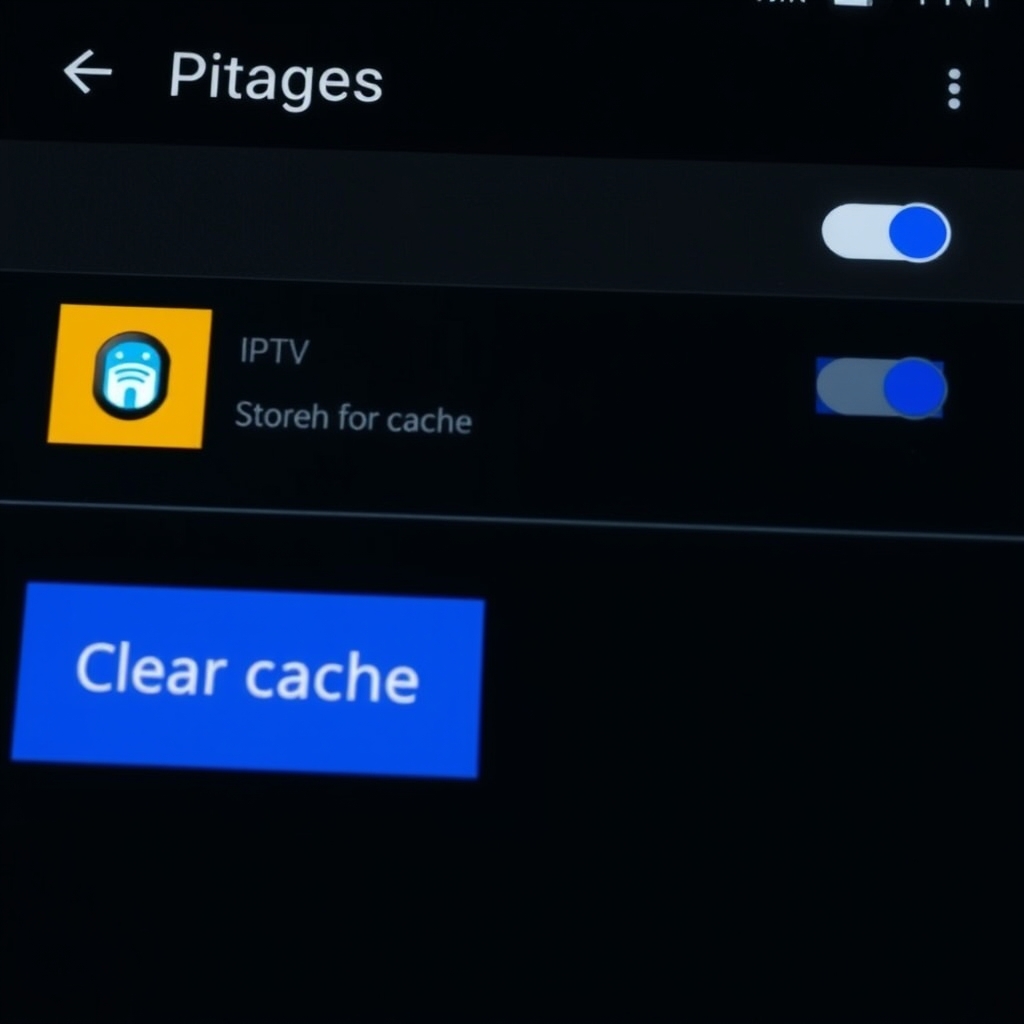
Firestick is immensely popular for IPTV streaming. To clear cache on IPTV apps on Fire OS:
- From the home screen, go to Settings (gear icon).
- Select Applications > Manage Installed Applications.
- Scroll and select your IPTV app (e.g., Downloader, IPTV Smarters Pro).
- Choose Clear Cache. Do not select 'Clear Data' unless you want to reset the app entirely.
- Force stop the app (optional but recommended), then launch it again.
Many users report that clearing cache on Firestick resolves the 'not enough storage' error, even when space is available, because cache consumes memory. Perform this monthly for optimal performance. If you're setting up a new Firestick, ensure you're using a reliable IPTV service—access 9,000+ channels instantly with our free IPTV trial here.
How to Clear Cache on iOS IPTV Apps (iPhone & iPad)
iOS manages cache differently, and many IPTV apps don't have a built-in clear cache option. Here are the effective methods:
- Method 1: Offload App (Preserves Data): Go to Settings > General > iPhone Storage > Select your IPTV app > Tap 'Offload App'. This removes the app but keeps its documents/data. Reinstall from App Store.
- Method 2: Delete and Reinstall: Hold the app icon > Remove App > Delete App. Then reinstall from the App Store. This clears all cache but also resets settings, so note your login details first.
- Method 3: In-App Clear Cache: Some advanced IPTV players like GSE SMART IPTV have a clear cache option within their settings menu.
Since iOS is more restrictive, regular reinstallation every few months can prevent performance degradation. Always download IPTV apps from official sources to avoid security risks.
Clearing Cache on Smart TV IPTV Apps (Samsung, LG, Android TV)
For Smart TVs running Tizen (Samsung) or webOS (LG), the process is similar to mobile but through the TV's settings.
Samsung Smart TV (Tizen):
- Press Home button > Go to Settings > Select 'Apps'.
- Find your IPTV app > Select it > Choose 'View Details'.
- Select 'Clear Cache'. You may also see 'Clear Data'—avoid unless necessary.
LG Smart TV (webOS):
- Press Home button > Go to Settings (All Settings) > General.
- Select 'Storage' > 'Internal Storage' > 'Manage Applications'.
- Select your IPTV app > 'Clear Cache'.
Android TV/Google TV:
Follow the same steps as the Android section above. For all Smart TVs, a power cycle (unplug for 60 seconds) after clearing cache can enhance results. Smart TVs have limited processing power, so keeping cache minimal is crucial. For a smoother Smart TV experience, consider using an external device like a Firestick with a premium service—explore our more guides on optimal setups.

Clearing Cache on Windows and Mac IPTV Players
Desktop IPTV players like VLC, Kodi (with IPTV addons), or dedicated players also store cache. In Kodi, you can clear cache via: Settings > System > Storage > Clean. For VLC, go to Tools > Preferences > Input/Codecs > File Caching (set to a lower value, e.g., 1000 ms). For Windows store IPTV apps, use Windows Settings > Apps > [App Name] > Advanced Options > Reset (this clears cache and data). On Mac, uninstalling and reinstalling is often the simplest method. Desktop caching issues often manifest as playback stutter. Ensure your internet connection is stable—sometimes the issue is network-related, not cache.
Pro Tips to Prevent Excessive Cache Buildup on IPTV Apps
Instead of frequently clearing cache, adopt these habits to minimize problems:
- Regular App Updates: Always update your IPTV app to the latest version, as updates often include cache management improvements.
- Periodic Restarts: Restart your streaming device (Firestick, Android Box) at least once a week to clear temporary memory.
- Limit Background Apps: Close other applications running in the background to free up RAM and storage.
- Use External Storage: If your device supports it, move the app to external storage or set cache to save on an SD card.
- Quality Settings: Streaming at very high resolutions (4K) generates larger cache. Adjust based on your internet speed.
Pair these maintenance habits with a high-quality IPTV service. A stable server reduces the app's need to constantly re-fetch data, limiting cache corruption. Test server reliability with our free trial here.
Cache vs. App Data: When to Clear Each
Understanding the difference is crucial when learning how to clear cache on IPTV apps:
- Clear Cache: Removes temporary files (recommended monthly). Safe, doesn't delete your account or playlists. Fixes buffering and loading issues.
- Clear Data/Storage: Erases all app data including logins, settings, favorites, and playlists. Use this only as a last resort if the app is completely malfunctioning or if you're selling your device. You'll need to reconfigure the app entirely.
As a rule, always try clearing cache first. If problems persist, consider clearing data, but ensure you have your IPTV service credentials (playlist URL, username, password) handy to re-enter. Forgetting login details is a common mistake—bookmark our FAQ for quick reference.
Conclusion: Master How to Clear Cache on IPTV Apps for Uninterrupted Streaming
Knowing how to clear cache on IPTV apps is a fundamental skill for any streamer looking to maintain optimal performance across Android, Firestick, iOS, Smart TVs, and desktop platforms. Regular cache maintenance resolves most common buffering, crashing, and loading issues, ensuring you enjoy your favorite live channels, movies, and series without interruption. Remember that while technical maintenance helps, the foundation of a great IPTV experience is a robust and reliable service with high uptime and quality streams. Put these tips into practice, and for the ultimate test of seamless streaming, experience our premium service risk-free with a free IPTV trial here, offering instant access to over 9,000 live channels and VOD. Happy streaming!