Table of Contents
- Why Choose IPTV on iPhone and iOS?
- Prerequisites Before You Begin
- Step 1: Choosing the Best IPTV Player App for iOS
- Step 2: Getting Your IPTV Playlist URL
- Step 3: Installing and Configuring Your IPTV Player
- Step 4: Adding Channels and Creating Favorites
- Step 5: Advanced Configuration & Settings
- Common iOS IPTV Troubleshooting
- Optimizing Your IPTV Experience on iOS
- Conclusion: Start Streaming Today
Why Choose IPTV on iPhone and iOS?
Setting up an IPTV service on your iPhone or iPad transforms your iOS device into a powerful entertainment hub. With over 9,000 live channels available through modern IPTV services, you can watch sports, news, movies, and international content anywhere with an internet connection. The iOS ecosystem offers excellent video playback, reliable apps, and seamless integration with other Apple devices like Apple TV.
Compared to traditional cable, IPTV on iOS provides greater flexibility, often at a lower cost. You're not tied to a physical location or specific hardware. Whether you're commuting, traveling, or relaxing at home, your iPhone can deliver premium television content directly to your pocket. Many users find the free trial here to be the perfect way to test this setup before committing.
Prerequisites Before You Begin
Before diving into the IPTV setup guide for iPhone and iOS, ensure you have these essentials ready:
- iOS Device: iPhone, iPad, or iPod Touch running iOS 14 or later (iOS 16+ recommended for best performance).
- Stable Internet Connection: Minimum 10 Mbps for SD, 25+ Mbps for HD/4K streaming. Wi-Fi is recommended over cellular data for unlimited streaming.
- IPTV Subscription: A valid subscription with playlist URL (M3U format) or Xtream Codes credentials. You can get started with our free 48-hour trial that includes 9,000+ channels.
- Apple ID: Required to download apps from the App Store.
- Basic Technical Knowledge: Ability to copy/paste URLs and navigate iOS settings.
Step 1: Choosing the Best IPTV Player App for iOS
The App Store offers several excellent IPTV players, each with unique features. Here are the top recommendations for your IPTV setup guide for iPhone and iOS:
GSE Smart IPTV (Most Popular)
This feature-rich app supports M3U playlists, Xtream Codes API, EPG (Electronic Program Guide), parental controls, and casting to Chromecast. The intuitive interface makes it ideal for beginners and advanced users alike.
IPTV Smarters Pro
Officially developed by WHMCS Smarters, this professional app offers a clean interface, multi-screen support, and excellent VOD (Video on Demand) organization. It's particularly good for services using Xtream Codes.
Flex IPTV
A beautifully designed app with Apple TV compatibility, customizable themes, and reliable playback. It's slightly more expensive but offers premium features and regular updates.
According to Apple's App Store Review Guidelines, all these apps comply with iOS security standards, ensuring your streaming experience is both safe and reliable.
Step 2: Getting Your IPTV Playlist URL
Your IPTV provider will supply either an M3U playlist URL or Xtream Codes login credentials. For our service, you'll receive this immediately after signing up for the free trial here. The process typically involves:
- Registering for the service (email verification may be required)
- Accessing your member dashboard
- Locating the "Playlist URL" or "M3U Link" section
- Copying the full URL to your iPhone's clipboard
Important: Never share your playlist URL publicly, as it's tied to your subscription. Treat it like a password. Most providers allow only one simultaneous connection per playlist, though some premium plans offer multiple connections.
Step 3: Installing and Configuring Your IPTV Player
Let's walk through the actual IPTV setup guide for iPhone and iOS using GSE Smart IPTV as our example (the process is similar for other apps):
- Open the App Store on your iPhone and search for "GSE Smart IPTV"
- Download and install the free app (in-app purchases unlock premium features)
- Launch GSE Smart IPTV and tap the "+" icon in the top-right corner
- Select "Playlist URL" from the options
- Paste your M3U URL that you copied earlier
- Give your playlist a name (e.g., "My IPTV Channels")
- Tap "Save" in the top-right corner
- The app will now fetch and parse your channel list (this may take 1-3 minutes)
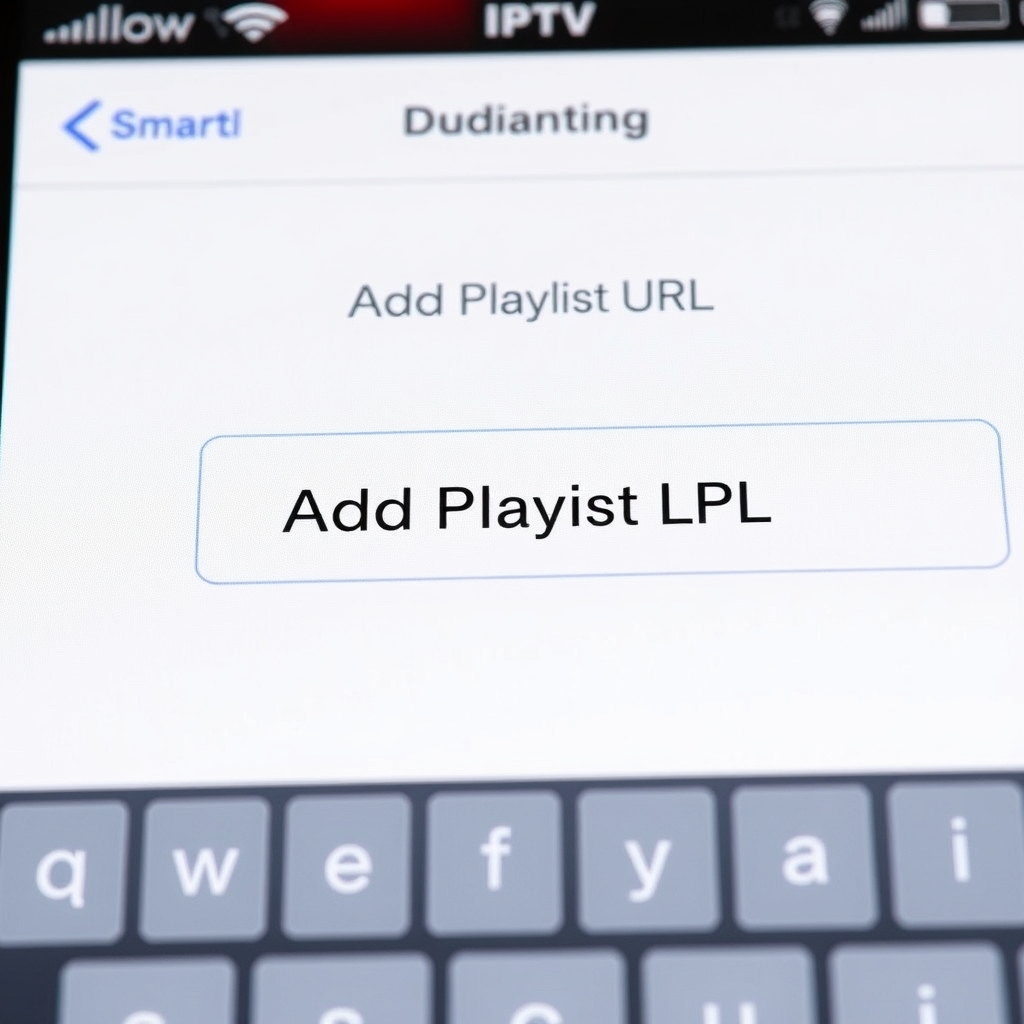
If your provider uses Xtream Codes instead of M3U, select "Xtream Codes API" during setup and enter your username, password, and server URL instead.
Step 4: Adding Channels and Creating Favorites
Once your playlist loads, you'll see thousands of channels organized by categories (Sports, News, Entertainment, International, etc.). Navigating this efficiently is crucial:
- Search Function: Use the magnifying glass icon to find specific channels or programs
- Favorites: Tap the heart icon next to any channel to add it to your favorites for quick access
- Recent Channels: Most apps keep a history of recently watched content
- EPG Integration: Ensure EPG (TV guide) is enabled in settings for program schedules
Pro Tip: Create favorite folders for different family members or viewing moods (e.g., "Dad's Sports," "Kids Cartoons," "Mom's Dramas"). This organization dramatically improves the user experience, especially with 9,000+ channels available.
Step 5: Advanced Configuration & Settings
To optimize your IPTV setup guide for iPhone and iOS experience, explore these advanced settings:
Video Player Settings
Most apps allow you to choose between native iOS player, VLC, or FFmpeg. Native player typically offers best compatibility with iOS hardware acceleration.
Parental Controls
Set PIN codes to restrict access to adult content or specific channel categories—essential for family devices.
Auto-Update Playlist
Enable automatic playlist updates to ensure you always have the latest channels without manual refreshes.
Multi-Screen Setup
Some apps support picture-in-picture or split-screen viewing on compatible iPads.
Common iOS IPTV Troubleshooting
Even with a perfect IPTV setup guide for iPhone and iOS, you might encounter issues. Here are solutions to common problems:
Channels Not Loading/Buffering:
- Check your internet speed (use Speedtest.net)
- Switch from cellular to Wi-Fi or vice versa
- Reduce video quality in app settings
- Restart your router and iOS device
Playlist Not Updating:
- Verify your subscription is still active
- Check if the playlist URL has changed (contact provider)
- Clear app cache and reload playlist
App Crashes or Freezes:
- Update to latest iOS version
- Update the IPTV player app
- Delete and reinstall the app (your playlist will need re-adding)
For persistent issues, check our FAQ page or contact your IPTV provider's support. Most quality services, including ours, offer responsive customer assistance.
Optimizing Your IPTV Experience on iOS
Take your IPTV setup guide for iPhone and iOS to the next level with these pro tips:
Use a VPN for Geo-Restricted Content
Some channels may be geographically restricted. A reliable VPN can help access content from different regions while also enhancing privacy. Choose VPNs with fast servers optimized for streaming.
Connect to Apple TV via AirPlay
Cast your iPhone's IPTV stream to your television using AirPlay for a big-screen experience without additional hardware.
Enable Background Audio Playback
Configure your IPTV app to continue playing audio when switching to other apps or locking your device—perfect for listening to news or music channels.
Battery Considerations
Extended IPTV streaming drains battery quickly. Keep a charger handy or enable Low Power Mode during long viewing sessions. Consider using an iPad for longer battery life during travel.
Conclusion: Start Streaming Today
This comprehensive IPTV setup guide for iPhone and iOS demonstrates that transforming your Apple device into a premium entertainment system is straightforward and rewarding. With the right player app, a stable playlist URL from a reliable provider, and proper configuration, you can access thousands of live channels anywhere.
The flexibility of iOS IPTV means you're no longer tied to traditional cable schedules or locations. Whether you want to catch the big game live, watch international news, or enjoy movies on demand, your iPhone or iPad can deliver it all through IPTV technology.
Ready to experience this yourself? The best way to test any IPTV setup guide for iPhone and iOS is with actual service. We invite you to try our free 48-hour IPTV trial featuring 9,000+ channels, premium VOD content, and reliable streams. No credit card required for the trial—just instant access to evaluate if our service meets your entertainment needs. Start streaming smarter today!